On this page · 8 sections
Quick answer
From a device you trust, change your email password, then sign out of every other device. Turn on two-step verification. Then check the two things hackers leave behind: email forwarding or filters you didn't set up, and a recovery phone or email that isn't yours. Can't get in at all? Use the provider's official recovery page.
Scan the infected machine first, then rotate the password, revoke sessions and app passwords, enable 2SV with several methods, audit forwarding, filters/rules, reply-to, send-as and auto-replies, and fix recovery info. Then rotate passwords on any site that resets through this inbox.
Friends getting strange emails from you? A password-change alert you didn't ask for? Your email is the key to almost every other account, so take it back now. Steps for Gmail, Outlook.com, Yahoo Mail and iCloud Mail are below.
These steps are for your own personal email. If your address comes from your job, school or internet company, they run the account: contact their IT or support team through their official website.
Easy Mode: 7 steps, in order
Takes 20 to 30 minutes. Free. Do the steps in order.
1. Check the signs
Your email is probably hacked if:
- Friends get emails or spam from you that you didn't send.
- You get alerts about a password, phone number or login change you didn't make.
- You see sign-ins from devices or places you don't recognize.
- Emails stop arriving, or settings changed on their own.
- Your password suddenly doesn't work.
Your password doesn't work and you can't get back in at all? Use our locked-out account recovery guide for Gmail, iCloud or Outlook.com. For Yahoo Mail, use Yahoo's Sign-in Helper, from Yahoo's own sign-in page typed in yourself. Then come back here for steps 4 to 7.
2. Use a clean device
If malware stole your password, it can steal the new one too. Microsoft's advice is to run a virus scan first.
- Windows: open the Windows Security app, go to virus and threat protection, then Scan options > Full scan > Scan now. Remove anything it finds.
- Not sure your computer is clean? Our read: do steps 3 to 7 from your phone instead.
3. Change your password
Make it long and new. Never reuse an old one.
- Gmail: open your Google Account, go to Security & sign-in and change your password there.
- Outlook.com: go to account.microsoft.com/security and change your password there.
- Yahoo Mail: open your Yahoo account's security page and change your password.
- iCloud Mail: on iPhone, open Settings, tap your name, then the sign-in and security section, and change your password. On a computer, sign in at account.apple.com.
Reused that password on other sites? Give each of them a new one too.
Spotted a recovery phone or email that isn't yours? Remove it now (see step 7) before you carry on.
4. Sign out everywhere
This kicks the hacker off any device still signed in.
- Gmail: Google Account > Security & sign-in > Your devices > Manage all devices. Sign out of any device you don't recognize.
- Outlook.com: on account.microsoft.com/security, open the advanced security settings, find Sign out everywhere and confirm with Sign out. Allow up to a day for it to finish. Microsoft says this doesn't include an Xbox console, which has its own sign-out steps.
- Yahoo Mail: on your account's security page, open Current sign-ins, pick any device that isn't yours and sign it out. Then, under External connections > App passwords, delete any you didn't create.
- iCloud Mail: at account.apple.com, open Devices and remove anything that isn't yours.
5. Turn on two-step verification
Then a stolen password alone won't get anyone in.
- Gmail: Google Account > Security & sign-in > Turn on 2-Step Verification.
- Outlook.com: on account.microsoft.com/security, find the two-step verification setting and turn it on. Microsoft's pages name the menu that holds it differently, so look for it among the sign-in options.
- Yahoo Mail: on your account's security page, look under Ways of signing in for 2-step verification.
- iCloud Mail: Apple says most Apple Accounts use two-factor authentication by default. To check, open Settings on your iPhone, tap your name, then the sign-in and security section, and look for two-factor authentication.
6. Remove sneaky forwarding and filters
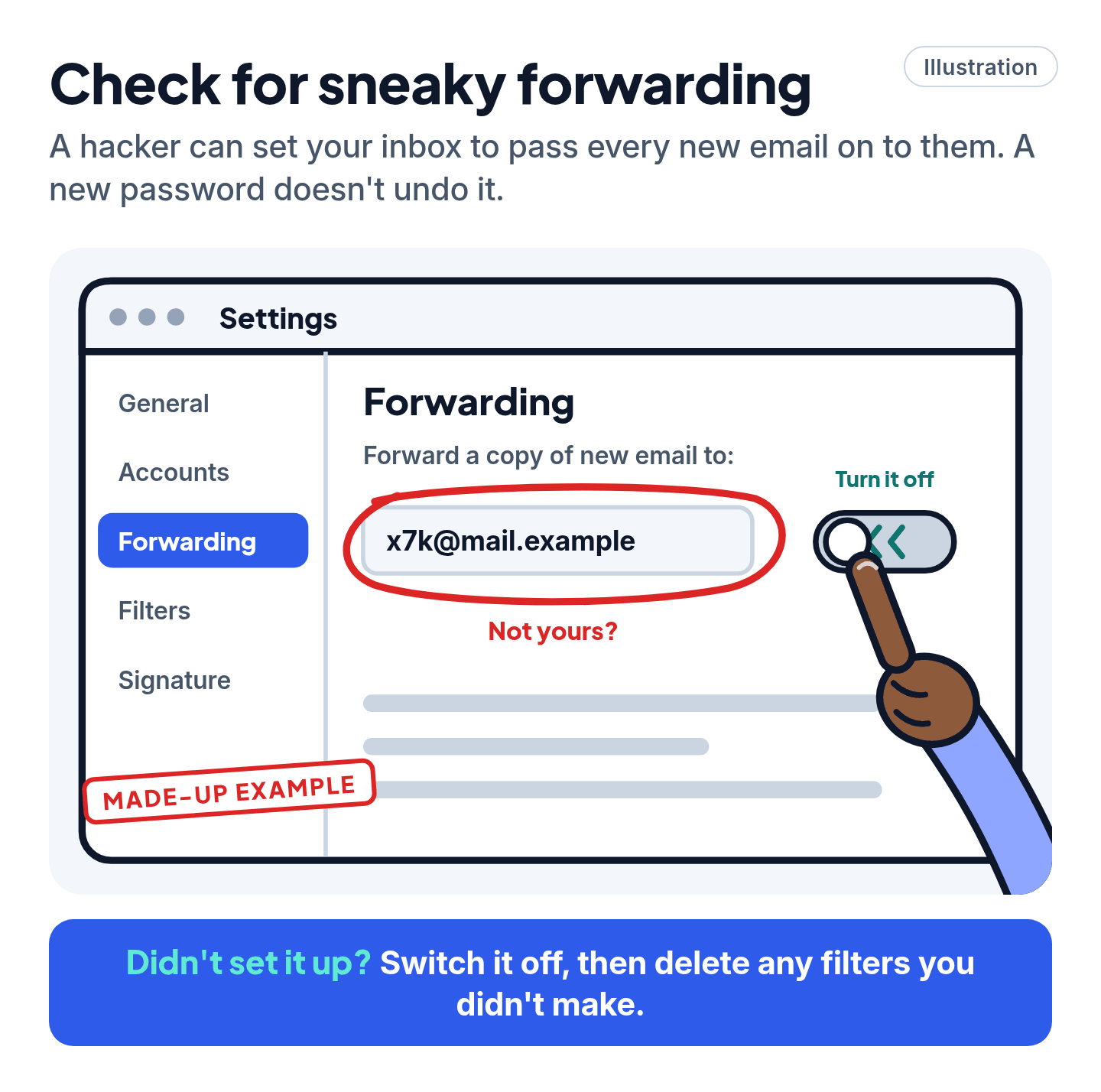
A common trick: the hacker sets your inbox to pass every new email on to them, or to tuck replies out of sight. A new password doesn't undo it.
- Gmail: on a computer, Settings (gear) > See all settings > the forwarding tab > Disable forwarding > Save Changes. Then open Filters and Blocked Addresses and delete any filter you didn't make.
- Outlook.com: Settings > Mail > Forwarding, untick Enable forwarding, then Save. Next, Settings > Mail > Rules: for any rule you didn't create, use More actions (⋯) > Delete rule.
- Yahoo Mail: go through your mail settings and look at forwarding, filters, the reply-to address, your name and signature, the vacation reply and blocked addresses. Undo anything you didn't set yourself.
- iCloud Mail: on a computer, go to icloud.com/mail, click the settings button above your mailbox list and choose Settings. Open the forwarding section in the sidebar and untick Forward my email to. Then open Rules, select any rule you didn't make and delete it. Rule changes can take up to 15 minutes to apply.
Cheat code
Check forwarding even if everything looks fine. Changing your password leaves forwarding and rules in place, so the hacker keeps getting copies of your mail until you remove them.
7. Fix your recovery phone and email
A hacker may have swapped in their own, so they can reset your password again later.
- Gmail: in your Google Account, under Security & sign-in, make sure the recovery phone and recovery email are yours.
- Outlook.com: in the advanced security settings at account.microsoft.com/security, go through every phone number and email used to verify it's you. Remove any that aren't yours.
- Yahoo Mail: on the Account Security page, make sure your recovery phone and email are yours and up to date.
- iCloud Mail: at account.apple.com, correct any personal or security details you don't recognize, including phone numbers.
Last, warn your contacts that recent emails from you may be fake, and that they shouldn't click links or send money.
Watch out for fake "recovery" helpers
Scam warning
Nobody legit charges to get your email back. Ignore ads, social posts and "hackers for hire" offering account recovery. Real help is free and comes only from the provider's own website or app, typed in yourself. Our read: treat any unexpected call or message claiming to be Google, Microsoft, Yahoo or Apple support as a scam. Apple says its support staff won't ask for your password or a verification code. Don't give a code to anyone. More warning signs: Is this a scam?
Still stuck? Follow the path
- Can't sign in at all? → See step 1. Our locked-out guide walks through the official recovery pages for Gmail, iCloud and Outlook.com. For Yahoo, start from Yahoo's own sign-in page.
- Hacker still getting in after all 7 steps? → From a different device, change the password again and sign out everywhere again. Then remove app passwords and connected apps (Pro Mode).
- Emails missing? → Look in Trash, Archive and any folder you don't normally use. A hacker's filter may have moved them there.
- Money, cards or your Social Security number involved? → Report it at ReportFraud.ftc.gov, or at IdentityTheft.gov if someone used your identity.
Pro Mode
Pro Mode Pro Mode: close every back door
Review security events (Google). In your Google Account, under Security & sign-in, open the recent security events list. For anything you didn't do, say it wasn't you and follow the prompts.
Leftovers in Google. Delete Gmail labels you never made, remove unfamiliar Chrome extensions, and turn off less secure app access if it's switched on.
Gmail: delegated access. On a computer, open Gmail and go to Settings > See all settings > Accounts and Import (or Accounts). Under Grant access to your account, look for anyone who's been given access to your mail, and click Delete next to anyone you don't know.
Microsoft. Microsoft says it resets some account settings after a hack, so look again at auto-replies, forwarding and any connected accounts in Outlook.com. With two-step on, have several ways to prove it's you: if you lose them all, getting back in can take 30 days. Microsoft is phasing out text-message codes for signing in to and recovering personal accounts. Microsoft suggests adding a passkey and a verified email address instead. The Microsoft Authenticator app works too.
Yahoo: connected apps. Delete any app password under External connections that you don't use. If your Yahoo recovery email is at another provider, run these steps on that account too.
Apple: lock it further. Apple suggests Security Keys as an extra guard against phishing and other targeted attacks. You need at least two keys, and losing every key and trusted device could lock you out for good. Check with your phone carrier, through its official website or app, that no one has set up text forwarding on the number linked to your Apple Account. iPhone owners can also switch on Stolen Device Protection.
Then the domino effect. Anyone who read your inbox could reset other accounts through it. Give new passwords to sites that sign in or send resets through this email, starting with banking, shopping and social media.
Check Sent and Trash. Messages you didn't write show who the hacker contacted as you, so you can warn those people directly.
You've got this
Password, sign out everywhere, two-step, then forwarding and recovery info. Seven steps and the hacker is out for good. The one most people miss is forwarding, so check it twice.
Sources
The 24 pages we checked
- FTC Consumer Advice: How To Recover Your Hacked Email or Social Media Account
- Google Account Help: Secure a hacked or compromised Google Account
- Google Account Help: See devices with account access
- Google Account Help: Turn on 2-Step Verification
- Gmail Help: Automatically forward Gmail messages to another account
- Gmail Help: Create rules to filter your emails
- Gmail Help: Delegate & collaborate on email
- Microsoft Support: How to recover a hacked or compromised Microsoft account
- Microsoft Support: How to sign out of your Microsoft account everywhere
- Microsoft Support: How to use two-step verification with your Microsoft account
- Microsoft Support: How to help keep your Microsoft account secure
- Microsoft Support: Microsoft to stop sending SMS codes for personal accounts
- Microsoft Support: Turn on or off automatic forwarding in Outlook.com and Manage email messages by using rules in Outlook
- Yahoo Help: Recognize a hacked Yahoo Mail account
- Yahoo Help: Find and remove unusual activity on your Yahoo account
- Yahoo Help: Two-step verification
- Yahoo Help: Fix problems signing into your Yahoo account
- Apple Support: If you think your Apple Account has been compromised and Two-factor authentication for Apple Account
- Apple Support: Automatically forward email in Mail on iCloud.com and Set up rules to filter email in Mail on iCloud.com
- Apple Support: Recognize and avoid social engineering schemes
- Apple Support: About Security Keys for Apple Account
More free guides are on the way.