On this page · 8 sections
Quick answer
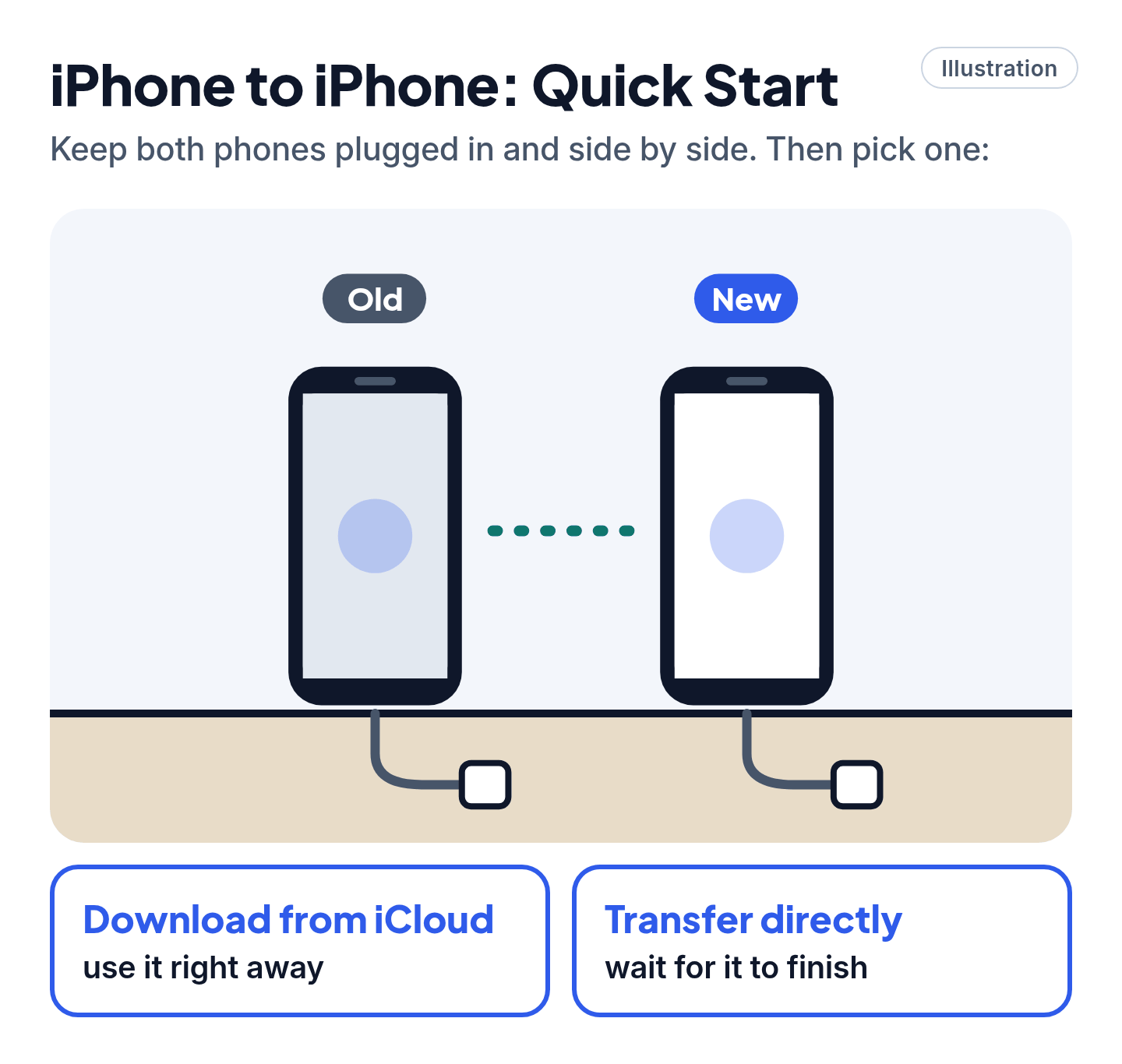
Do it while you set up the new device. Charge both, turn on Wi-Fi and Bluetooth, and keep them side by side. iPhone to iPhone: Quick Start. Android to Android: choose Copy apps & data (Samsung: Smart Switch). Android to iPhone: Move to iOS. iPhone to Android: scan the QR code on the new phone. Mac: Migration Assistant. Windows: Windows Backup.
Phone transfers are designed to run during setup; afterward you may need to erase and start over (Android 17 adds Settings > Accounts & backup > copy data). Check storage first, deregister iMessage when leaving iPhone, and expect paid apps, iCloud Photos and some app data not to move. Windows' direct PC-to-PC transfer is retired: use Windows Backup (OneDrive) or Migration Assistant for Mac.
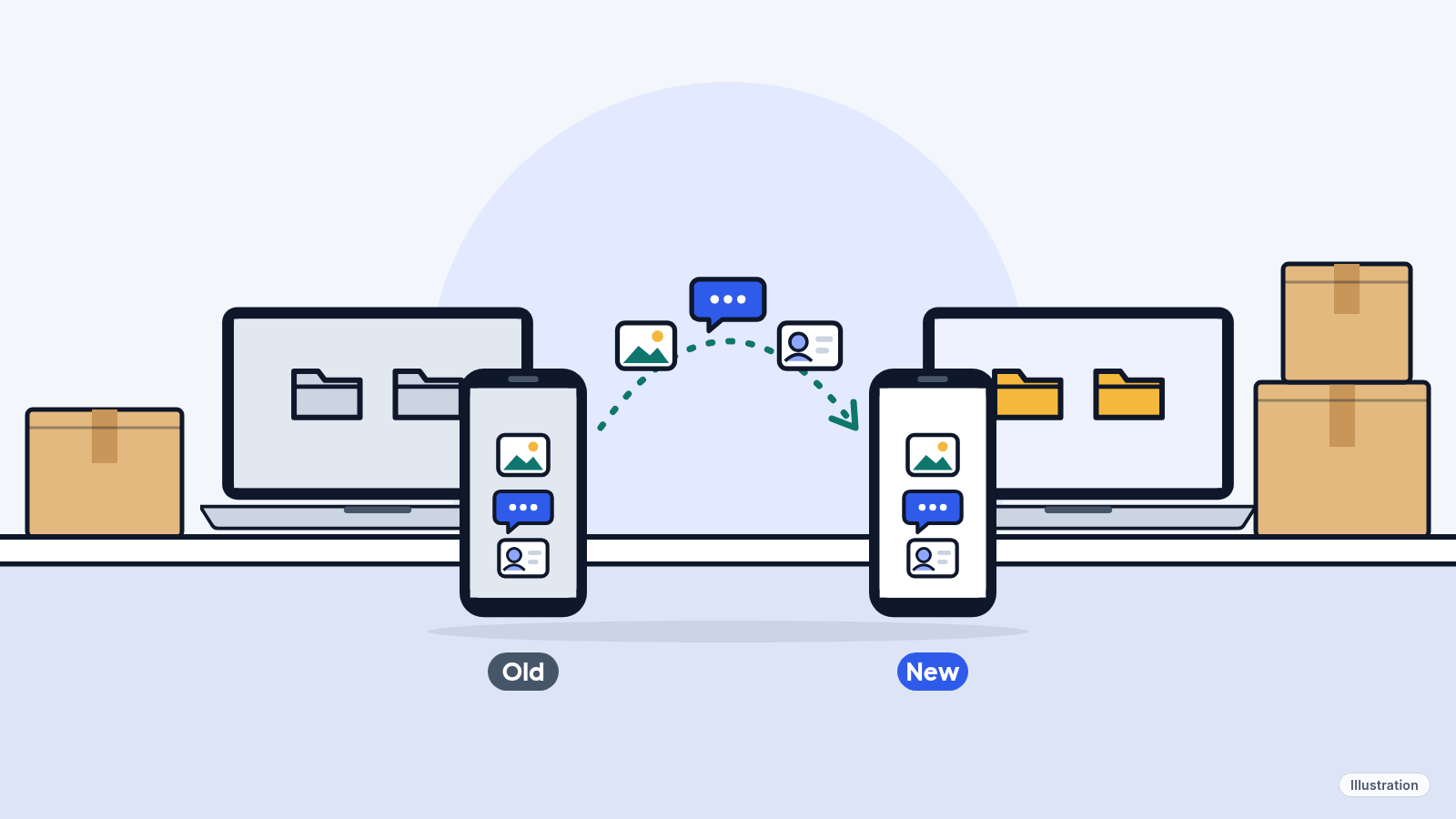
New phone or laptop out of the box? The fun part is waiting, but first you want your photos, messages and contacts on it. Good news: Apple, Google, Samsung and Microsoft all include free tools that do the moving for you.
Easy Mode: find your move, then follow the steps
Takes 15 minutes of your time, plus up to a few hours of waiting. Do Step 1 first, then jump to your move.
1. Get ready (10 minutes that save hours)
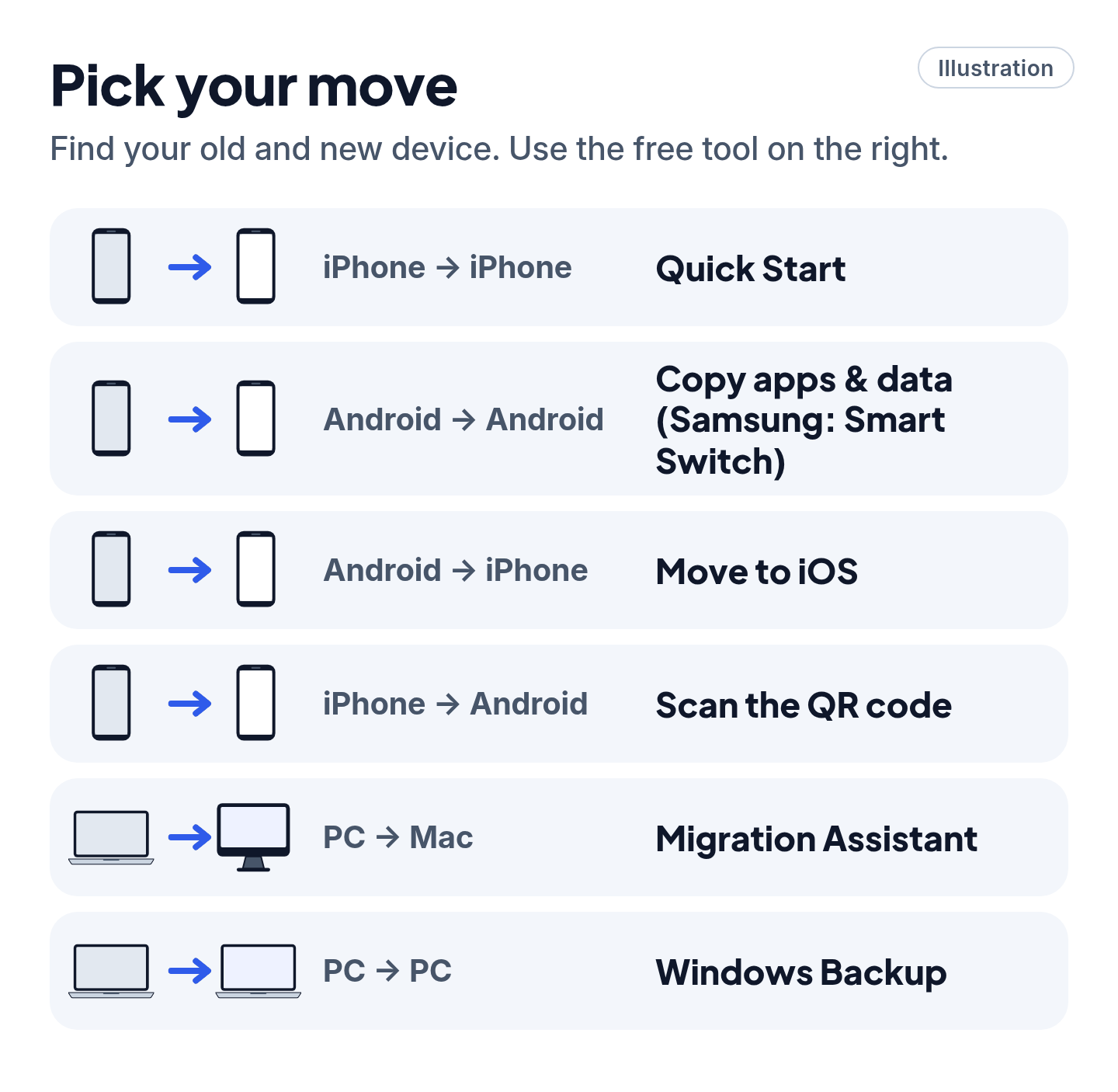
- Update both devices, then plug both in to power.
- Turn on Wi-Fi and Bluetooth on both, and keep them next to each other.
- Have your passwords ready: your old phone's passcode, plus your Apple Account, Google Account or Microsoft account password. (Locked out? See our recovery guide.)
- Check storage. The new device needs room for everything you're bringing.
- Don't wipe the old device yet. Keep it for a week, until you're sure everything came over.
Cheat code
Move your stuff during setup, not after. Google says the Android transfer may not be offered once setup is done, and Apple says that to use Move to iOS after setup, you'd have to erase the iPhone and start over.
2. iPhone to iPhone: Quick Start
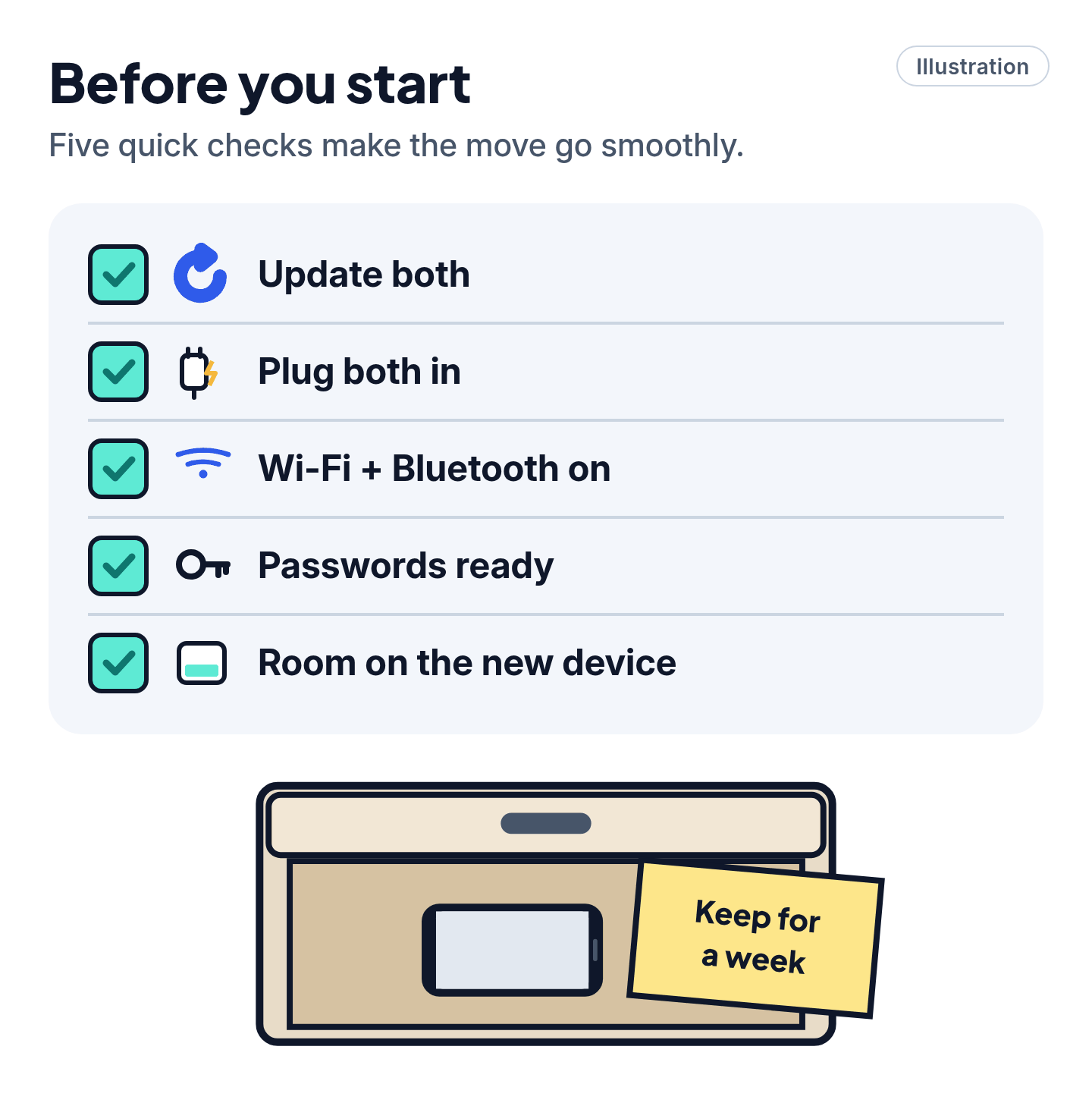
- Unlock your old iPhone. Turn on the new one and set it next to the old one.
- A prompt to set up the new iPhone appears on the old one. Follow the on-screen steps on both phones and connect to Wi-Fi.
- Set up Face ID or Touch ID, then choose how to move your data:
- Download from iCloud: you can use the new phone right away while things fill in.
- Transfer directly from your iPhone: you wait for it to finish on both phones before using either.
- Keep both phones close together and plugged in until it's done.
Prompt disappeared? Apple says to restart both phones and try again.
3. Android to Android (Pixel, Samsung and others)
- Turn on the new phone, follow the setup steps and connect to Wi-Fi.
- When asked to copy apps and data, tap Copy.
- With a cable (Google recommends it): connect the two phones and tap Copy on the old one. No cable that fits? Tap No cable to transfer wirelessly.
- Choose what to copy and tap Copy. It can take a few minutes to over an hour. The old phone shows "Copying's done" when it's finished.
New phone is a Samsung Galaxy? You can also use Smart Switch: on both phones, open Settings and search for Smart Switch. On the old phone, tap Send from this phone. On the new one, tap Receive on this phone > Galaxy/Android, pick Wireless or Cable, then tap Connect on the old phone.
4. Android to iPhone: Move to iOS
- On the new iPhone's Quick Start screen, tap Set Up Without Another [Apple] Device.
- On Transfer Your Apps & Data, tap From Android, then Transfer with App.
- On the Android phone, open the free Move to iOS app from Google Play (the iPhone can show a QR code that takes you there).
- Type the code shown on the iPhone into the Android phone, and join the temporary Wi-Fi network the iPhone makes.
- Pick what to bring over: contacts, messages, photos, calendars and more.
Then leave both phones alone until the bar on the iPhone finishes, even if the Android phone says it's done. Apple says a phone call, or switching to another app on the Android, means your content won't transfer.
5. iPhone to Android
- Turn off iMessage on your iPhone first (Google says you must). In Settings, tap Apps > Messages and turn off iMessage.
- Start setting up the new Android phone. When asked, choose to copy your data from your iPhone.
- See a QR code? Scan it with the iPhone's Camera app and follow the steps. On some phones this opens the free Android Switch app. No QR code? Follow the on-screen steps to connect the two phones with your iPhone's charging cable.
- Keep both phones together until setup is finished.
Already left your iPhone and texts aren't arriving? Use Apple's free Deregister iMessage page on Apple Support.
6. Old Windows PC to a new Windows PC
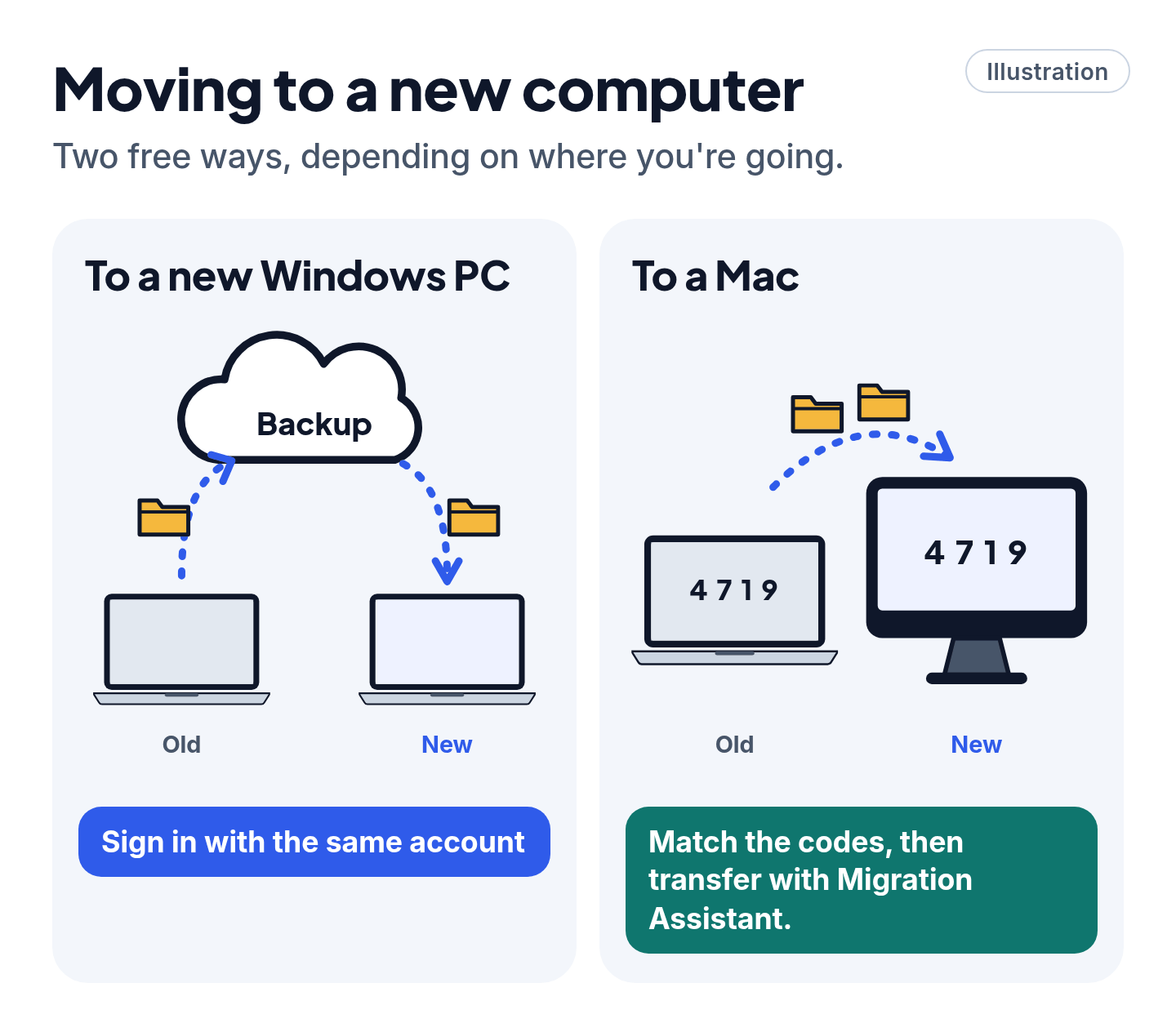
Microsoft has retired its direct PC-to-PC transfer. The free way now is Windows Backup:
- On the old PC, select Start, type backup and open Windows Backup. You need to be signed in with a personal Microsoft account.
- Under Folders, turn on Desktop, Documents, Pictures, Videos and Music. Turn on the settings you want to keep, then select Back up.
- On the new PC, sign in with the same Microsoft account during setup. Windows will offer to restore your backup.
More files than your free OneDrive space (5 GB)? You don't have to buy more. Copy the extra folders to a USB drive and move them across by hand.
7. Moving to a Mac (from a Mac or a Windows PC)
- On the new Mac, use the setup assistant, or open Migration Assistant (Applications > Utilities).
- Choose to transfer from a Mac, Time Machine backup or startup disk, or from a Windows PC.
- From a Mac: open Migration Assistant on the old Mac and choose to transfer to another Mac. From a PC: download the free Windows Migration Assistant from Apple's website and enter the code your Mac shows.
- Tick what to bring over and click Continue. Big transfers can take hours.
Antivirus, firewall or VPN software on either computer? Apple says to turn it off until you're done.
Skip the scams and upsells
Scam and upsell warning
- Every tool in this guide is free. Get Move to iOS, Android Switch and Smart Switch only from Google Play, the App Store or the phone's own Settings, and Windows Migration Assistant only from Apple's support site.
- Don't call a "transfer help" number from a search ad or pop-up. Use the official support sites from Apple, Google, Samsung and Microsoft instead.
- Never let a stranger take remote control of your computer to "move your files."
- Wiping the old phone? Only after you've checked that your photos, messages and contacts made it.
Still stuck? Try this
- The transfer stopped or froze? Charge both devices, restart both and try again. Google says most Android transfers can restart, and a different cable or Wi-Fi instead of a cable can help.
- Move to iOS keeps failing? Apple suggests turning off apps or settings on the Android that switch Wi-Fi networks (like Smart Network Switch), turning off mobile data, and restarting both phones.
- Something didn't come over? Some things never transfer. See the list in Pro Mode.
- Already finished setting up the new phone? On newer Android phones, look in Settings > Accounts & backup for an option to copy data from another device. Otherwise you may need to erase the new phone and start setup again.
- Mac migration failed? Apple says you can copy your important files across with an external drive instead.
Pro Mode
Pro Mode Pro Mode: what doesn't move, after-setup options and edge cases
What won't transfer (plan for it).
- Android to Android: downloads like PDFs, hidden folders, apps not from Google Play, ringtones, and data from apps that don't use Android backup (Google).
- iPhone to Android: photos stored only in iCloud, paid apps and in-app purchases, Safari bookmarks and Health data (Google). Download them to the iPhone first if you want them moved.
- Android to iPhone: music, books and PDFs need to be moved by hand. Only free apps found in both stores are matched (Apple).
- Windows: apps don't move themselves. Their pins come back; select a Microsoft Store app's pin to reinstall it, and other apps send you to the web for the installer. Files come back through OneDrive.
Back up first, just in case. iPhone: Settings > [your name] > iCloud > iCloud Backup > Back Up Now. Android: Settings > Google > All services > Backup > Back up now (labels vary by phone). A backup also lets you set up a new phone when the old one is lost or broken.
iPhone to Android, built in (iOS 26.3 and later). Settings > General > Transfer or Reset iPhone > Transfer to Android starts the same QR-code transfer and can also move your eSIM with supported carriers. The Android phone needs a compatible version of Android 17. The upgraded transfer (Pixel 8 and newer, and some Samsung foldables) also moves call history, passwords, passkeys and Wi-Fi networks.
Android to iPhone without the app. If the Android phone runs a compatible version of Android 17, tap Transfer without App on the iPhone and scan its QR code with the Android phone.
Android cloud restore. No old phone? Restore from your Google backup during setup. Google says the new phone must run the same Android version or newer.
Samsung extras. Smart Switch can also pull data from iCloud, or back up to a microSD card or USB drive and restore from there. Samsung recommends at least 20% battery for cable transfers.
Mac account names. If an account with the same name already exists on the new Mac, Migration Assistant asks whether to replace it or rename the old one. Moving a standard account? Apple shows a temporary password on screen. Write it down; you'll need it for the first login.
Windows notes. Windows Backup works with personal Microsoft accounts, not work or school ones. Windows 10 support ended on October 14, 2025, so a Windows 10 PC is a good one to move off.
You've got this
Charge both, keep them side by side, use the free tool your new device offers during setup, and keep the old one around for a week. That's the whole move.
Sources
The 15 pages we checked
- Apple Support: Use Quick Start to transfer data to a new iPhone or iPad
- Apple Support: Use iCloud to transfer data from your previous iOS or iPadOS device to your new iPhone or iPad
- Apple Support: How to back up your iPhone or iPad with iCloud
- Apple Support: Move from Android to iPhone or iPad
- Apple Support: Transfer an eSIM and data from your iPhone or iPad to an Android device
- Apple Support: Deregister iMessage on your iPhone or online
- Apple Support: Transfer to a new Mac with Migration Assistant
- Apple Support: Transfer from PC to Mac with Migration Assistant
- Android Help: Copy apps & data from an Android to a new Android device
- Android Help: Copy apps & data from an iPhone or iPad to a new Android device
- Android Help: Can't transfer data to a new Android device
- Android Help: Back up or restore data on your Android device
- Samsung Support: Transfer content with Samsung Smart Switch
- Microsoft Support: Back up and restore with Windows Backup
- Microsoft Support: Transfer your files and settings to a new Windows PC
More free guides are on the way.