
On this page · 8 sections
Quick answer
Try a different cable, charger and wall outlet first. Then look in the charging port with a flashlight and gently clear any lint, without metal or liquid. Restart the phone. Still nothing? Check for a liquid or moisture alert, let a hot or cold phone return to room temperature, and look for a charging limit in Battery settings.
Isolate the accessory first: a known-good cable and adapter, straight into a wall outlet. Wet port: iPhone XS/XR and later and water-resistant Galaxy phones block wired charging until it's dry; never push anything into a wet port. Stuck at 80%: iPhone Charge Limit (iPhone 15 and later) or Optimized Battery Charging, Pixel Charging optimization (Limit to 80%), Galaxy Battery protection. No response on a Pixel after 25 minutes on a working charger, or an iPhone that still won't charge after a force restart and another half hour: book a repair through the official site.
Between them, Apple's, Google's and Samsung's help pages point to the same few suspects when a phone won't charge: the cable and charger, the charging port, a restart, heat and battery settings. iPhones and water-resistant Galaxy phones also stop wired charging when the port is wet. Work down this list and stop when your phone starts charging.
These steps are for a phone you own. If it's a work or school phone, check with that organization's IT team first, because it may manage the phone's settings. Menus vary by model, software version and country; the steps below follow Apple's, Google's and Samsung's U.S. help pages.
Easy Mode: get your phone charging again, quickest first
Free to try. You only need a second cable or charger if you can borrow one.
1. Swap the cable, charger and outlet
All three makers put the cable and charger near the top of their checklists.
- Look at the cable and charger. Apple says not to use one with breaks or bent prongs.
- Plug straight into a wall outlet, and make sure each connection is firm. Try another outlet too. On a Pixel, Google suggests checking the outlet by plugging in something else, like a lamp.
- Try a different cable or charger. Google also suggests plugging another device into your charger and cable to test them. Samsung says to use compatible Samsung chargers and cables on a Galaxy, because incompatible or damaged ones can stop it charging.
- Take the case off. Google says a case can get in the way of the plug or a wireless charger.
- Seeing an alert about the accessory? On an iPhone, Apple says an alert that the accessory isn't supported or certified can come from a dirty or damaged port, a faulty cable or charger, or a USB charger that wasn't made to charge devices. Plug the cable straight into the charger with nothing in between, try another cable or charger, and update iOS. On a Pixel, Google says a charging-accessory notification means the cable or adapter might be damaged or might not work with your phone. Switch to a compatible one.
2. Clear lint from the port, gently
Our read: lint packed into the port can stop the plug from going all the way in.
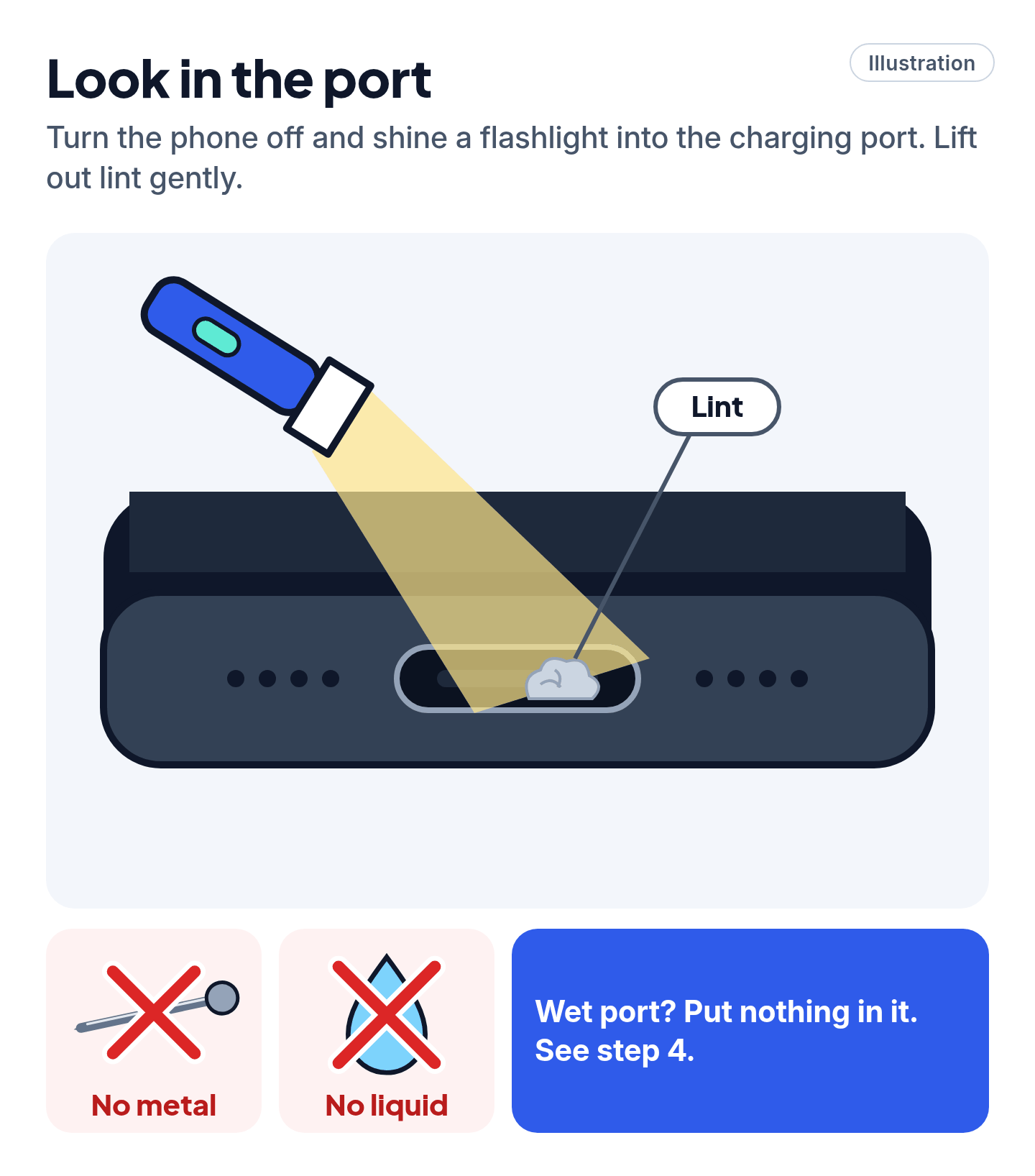
- Turn the phone off and shine a flashlight into the port (Samsung's advice).
- Lift out any lint or dust carefully, with nothing metal and no liquid. That's Samsung's rule. Apple says to remove any debris and Google says to check that nothing is in the port, but neither says how.
- Wet port? Put nothing in it. Apple says not to push a cotton swab or paper towel into a wet connector, and Samsung says not to insert any object into a wet port. See step 4.
Our read: if the lint is packed in and won't lift out without force, let a repair shop from step 6's list do it.
3. Restart, or force restart
Then plug in and wait before you decide it's dead.
- iPhone 8 or later, and iPhone SE (2nd generation or later): press and quickly let go of volume up, then volume down, then hold the side button until the Apple logo shows. Apple says to charge for half an hour before this, and another half hour after.
- Pixel: if it's off, press and hold Power for 5 to 7 seconds to turn it on. If it's on but frozen, hold Power for about 35 seconds to reboot it. Google says a Pixel with a fully drained battery that has sat unused for a long time can show no charging icon, vibration or screen for up to 25 minutes after you plug it in.
- Samsung Galaxy: hold the Volume down and Side buttons together until the phone switches off and the Samsung logo appears.
4. Got a liquid or moisture alert? Let it dry
iPhones and water-resistant Galaxy phones turn off wired charging when they sense water in the port. Apple says that's to protect the phone and the accessory.
- iPhone XS, XS Max, XR and later: disconnect the cable at both ends. Hold the phone port-down and tap it lightly on your palm to shake out the water, then leave it somewhere dry with some airflow. Wait 30 minutes or more before you try the cable again. Apple says it can take a full day to dry completely.
- Samsung Galaxy (water-resistant models): an alarm sounds until you unplug the charger. Shake the phone gently, then wait. Samsung says water in the port usually evaporates in about 1 to 2 hours. If something other than fresh water got in, Samsung says to rinse the phone with fresh water, then dry it well with a soft, dry cloth.
- Don't use a hair dryer or other heat, compressed air or a bag of rice (Apple), and don't put anything in the port.
- Need power now? Apple and Samsung both say a wireless charger still works (if your phone supports it). Dry the phone first.
Cheat code
Skip the rice. Apple warns that tiny bits of rice can damage an iPhone. Its advice is a dry spot with some airflow, and time.
5. Too hot or too cold? Let it get back to room temperature
All three makers say a phone that's too hot may stop charging for a while. Apple says the same about an iPhone that's too cold.
- iPhone (iOS 16 and later): you'll see a "Charging On Hold" message. Move the phone somewhere cooler and out of direct sun, or somewhere warmer if it's cold, and lock the screen. Apple also says a warm iPhone may limit charging above 80% until it cools down.
- Pixel: charging starts again once the phone cools down.
- Samsung Galaxy: charging may stop for a while or slow down. Samsung says to let it cool before charging again.
Our read: don't use or game on the phone while it charges in a hot car or in direct sun.
6. Stuck at 80%? Check your battery settings
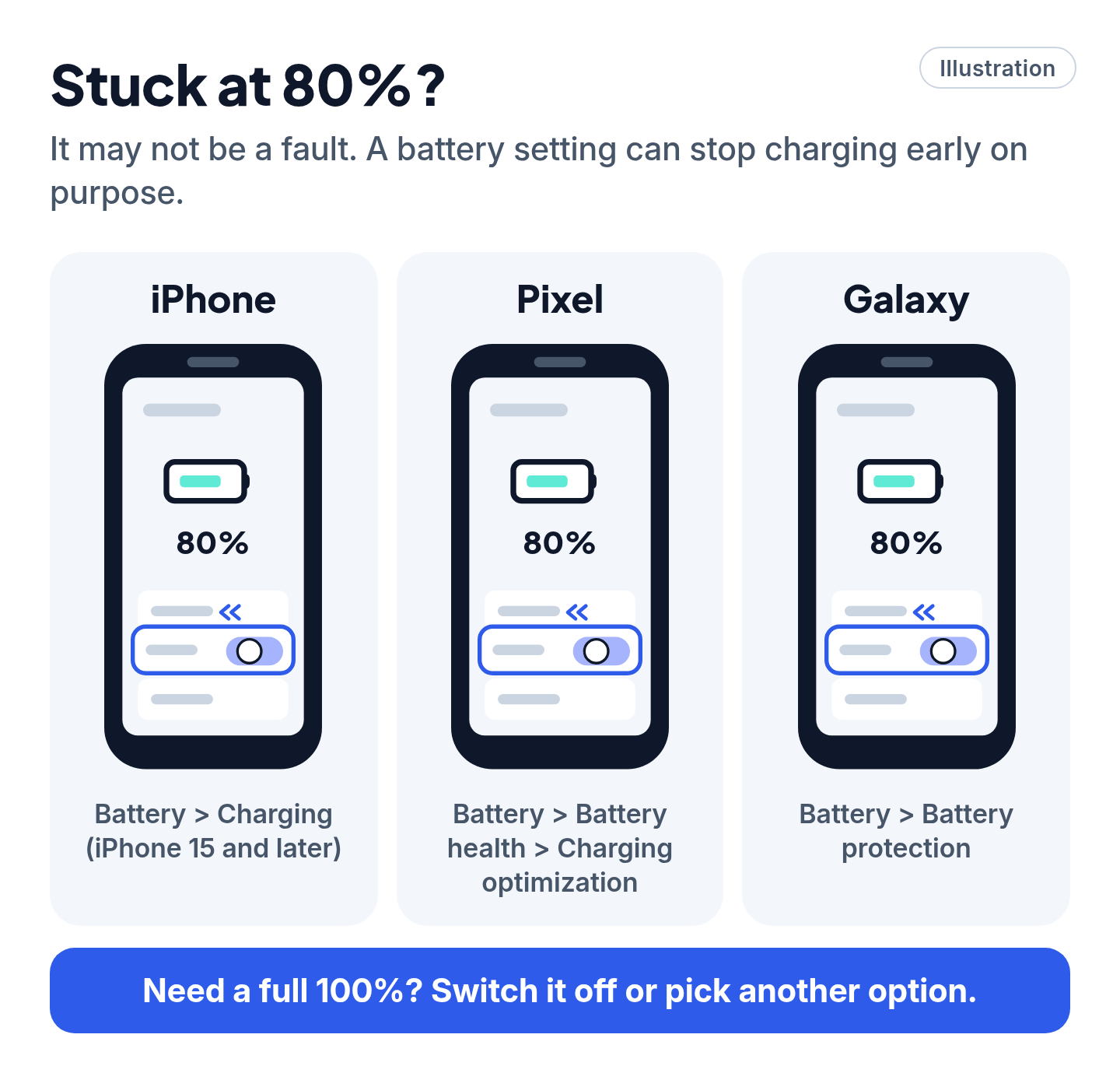
It may not be a fault. Each maker has a setting that can stop charging below 100% on purpose, to protect battery health.
- iPhone 15 and later: go to Settings > Battery > Charging and choose a limit between 80% and 100%, in 5% steps. At 100%, Optimized Battery Charging can be on there too.
- iPhone 14 and earlier: go to Settings > Battery > Battery Health & Charging and check Optimized Battery Charging. On any iPhone, when Optimized Battery Charging is holding the charge, a Lock Screen notification says when the phone will be full. Touch and hold it, then tap Charge Now.
- Pixel: go to Settings > Battery > Battery health > Charging optimization. Limit to 80% stops at 80%; turn it off when you need a full 100%. Adaptive Charging still charges to 100%, but finishes just before you usually unplug.
- Samsung Galaxy: go to Settings > Battery > Battery protection. Pick another option, or switch it off. Samsung notes that one option can pause charging at 80% while you sleep and finish charging just before your set wake-up time.
Book repairs only through the official site
Scam warning
- Type the repair site in yourself: support.apple.com/iphone/repair, Google's Pixel Phone Help, or samsung.com/us/support/service. Our read: don't book through a search ad or a pop-up.
- Our read: a "repair" that wants payment by gift card, or a stranger who asks for your passcode or Apple Account password over the phone, is a red flag. Our scam guide covers the warning signs.
Still stuck? Find your situation
| What you see | What it means | What to do |
|---|---|---|
| Works with a different cable or charger | The old cable or charger is the problem | Replace it (step 1) |
| Plug feels loose or won't go all the way in | Possibly lint in the port | Step 2 |
| iPhone liquid alert every time, even with an Apple cable | Apple says it may need service | Book a repair (below) |
| Pixel shows nothing after 25 minutes on a working charger | Google says to start a repair | Book a repair (below) |
| Stops at 80% every time | A charging limit or optimization setting | Step 6 |
| Pixel screen starting to lift at the edges | Possibly a swollen battery | Don't press on it or pry it open. Leave it unused and book a repair (below). Don't throw it in the trash. |
| Still won't charge after all 6 steps | Possible hardware fault | Book a repair (below) |
Official repair sites: Apple at support.apple.com/iphone/repair, Google through Pixel Phone Help's Get your Pixel phone repaired page (options depend on your warranty and where you live), and Samsung at samsung.com/us/support/service.
Pro Mode
Pro Mode Pro Mode: charger specs, emergency options and screen checks
Pixel charger specs. For best charging speed and battery results, Google recommends its own 30 W USB-C adapter or another PPS (programmable power supply) adapter rated 30 W or more, or another USB Power Delivery adapter rated 15 W or more. Google says actual speeds depend on the phone.
iPhone emergency charge. Apple says you shouldn't charge a wet iPhone, because wet pins can corrode, which can damage the phone for good. In an emergency, reconnecting the cable gives you an option to override the liquid alert. Our read: if the back is dry, a Qi-certified wireless charger, which Apple says still works, is the better choice.
Is it the screen, not the battery? (Pixel) If a plugged-in Pixel shows nothing, hold Power for about 35 seconds to reboot it, wait about 2 minutes, then ring it from another phone. If it rings but the screen stays dark, Google says to contact an authorized repair center.
Optimized charging needs time (iPhone). Apple says Optimized Battery Charging needs at least 14 days to learn your routine, plus at least 9 charges of 5 hours or more in one place, before it kicks in.
Pixel full charge every 10th cycle. To keep battery readings accurate, Google says a Pixel needs a full charge every 10th cycle, even with Limit to 80% on. Leave it plugged in at least 30 minutes after it shows 100%.
Galaxy fast charging. If charging seems slow on a Galaxy, Samsung says to open Settings > Battery > Charging settings and confirm fast charging is on. From the Galaxy S23 series on, the fast-charging switches are combined into one. Samsung notes that menu names vary by model and software version.
You've got this
Swap the cable and charger, clear the port gently, restart, let a wet or overheated phone recover, then check the battery settings. If none of that works, book a repair on the official site.
Sources
The 16 pages we checked
- Apple Support: If your iPhone or iPod touch won't charge
- Apple Support: If you see a liquid-detection alert on your iPhone
- Apple Support: About Optimized Battery Charging and Charge Limit on your iPhone
- Apple Support: If a Charging On Hold notification appears on your iPhone or iPad
- iPhone User Guide: Set a charge limit on iPhone
- iPhone User Guide: Force restart iPhone
- Apple Support: iPhone Repair
- Pixel Phone Help: Understand your Pixel battery
- Pixel Phone Help: Fix a Pixel phone that won't charge or turn on
- Pixel Phone Help: Maximize charging on your Pixel phone
- Pixel Phone Help: Charge your Pixel phone
- Pixel Phone Help: Get your Pixel phone repaired
- Samsung US: Galaxy device may appear to be charging slowly or not charging at all
- Samsung US: Moisture in water-resistant Samsung phone or tablet's charging port
- Samsung US: Galaxy device battery is not charging past 80% or 85%
- Samsung US: Different ways to restart your Galaxy phone or tablet
More free guides are on the way.