
On this page · 8 sections
Quick answer
Check whether it's one device or everything. If it's everything, unplug your modem and router for 30 seconds, plug the modem in first, then the router. Then move closer to the router and away from microwaves and metal. Still dropping? Forget the network on your device and join it again.
Isolate client vs. network vs. ISP (ping the default gateway, check the ISP outage page over mobile data). Power-cycle modem then router, update router firmware, set channels to Auto with 20 MHz on 2.4 GHz, and check client power saving, private MAC settings and AP isolation. Pull a Windows WLAN report or run Mac Wireless Diagnostics to see disconnect reasons.
Your video freezes, the smart speaker says "I'm having trouble connecting," and the Wi-Fi bars come and go. Good news: dropping Wi-Fi can usually be fixed for free, at home, in under 30 minutes.
Easy Mode: 6 fixes, easiest first
Takes 2 to 30 minutes. Free, and none of your files are touched. Stop as soon as the drops stop.
1. Find out what's dropping: one device, or everything?
- Only one phone or laptop drops? It's probably that device. Skip to Fix 5 (or Fix 3 if it only drops in one room).
- Everything drops at once? The problem is the router or your internet service. Start with Fix 2.
- Is it an outage? Turn Wi-Fi off on your phone, use mobile data, and check your internet company's outage page or app. If there is one, just wait it out.
Cheat code
Your phone is a test kit. Drops at home but works fine at a friend's house or a café? Your phone is fine. The problem is your home network.
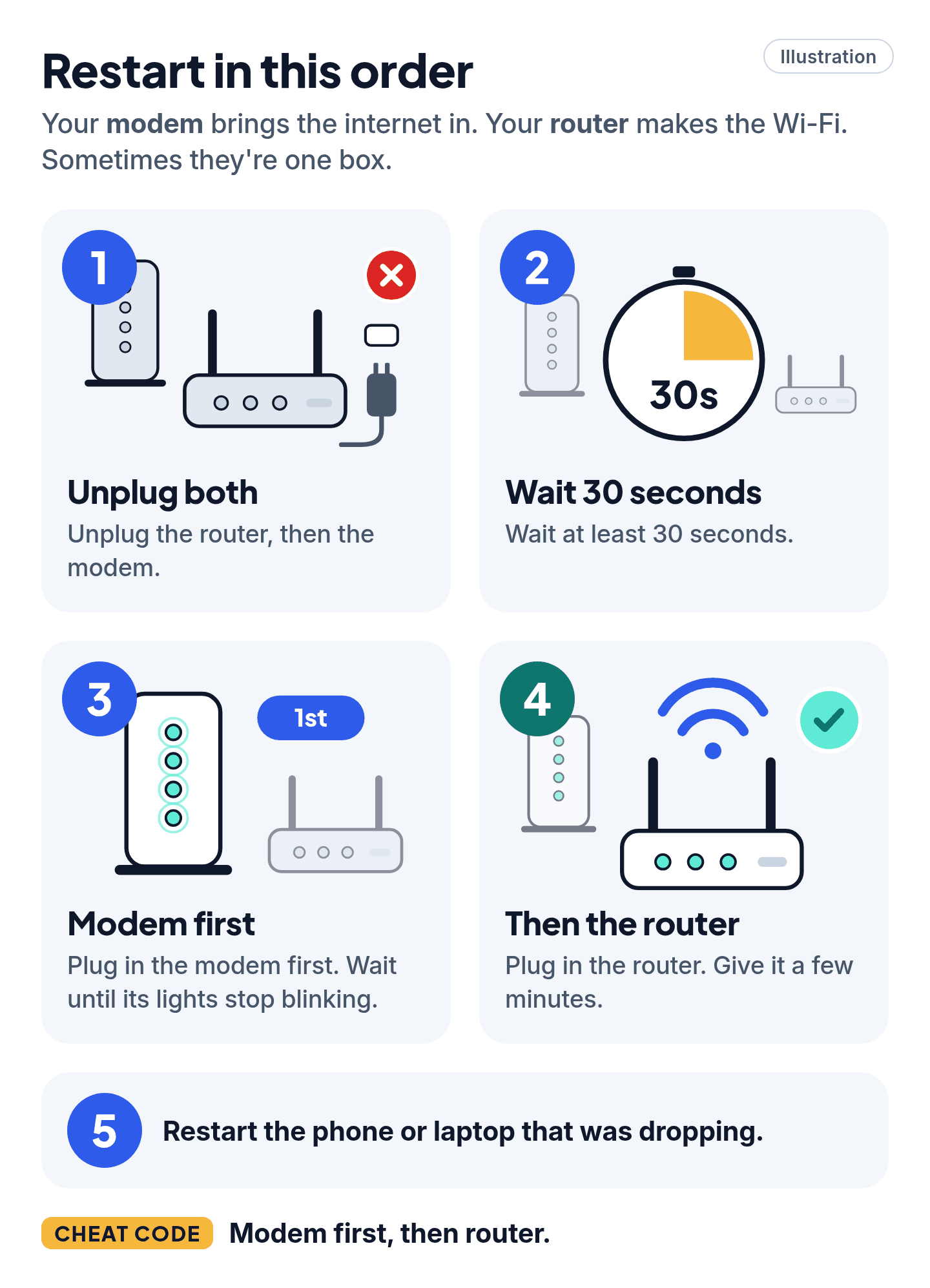
2. Restart the modem and router, in the right order
Your modem brings the internet in. Your router makes the Wi-Fi. Sometimes they're one box.
- Unplug the router, then the modem.
- Wait at least 30 seconds.
- Plug in the modem first. Wait until its lights stop blinking.
- Plug in the router. Give it a few minutes.
- Restart the phone or laptop that was dropping.
3. Fix the spot: move closer, and clear the path
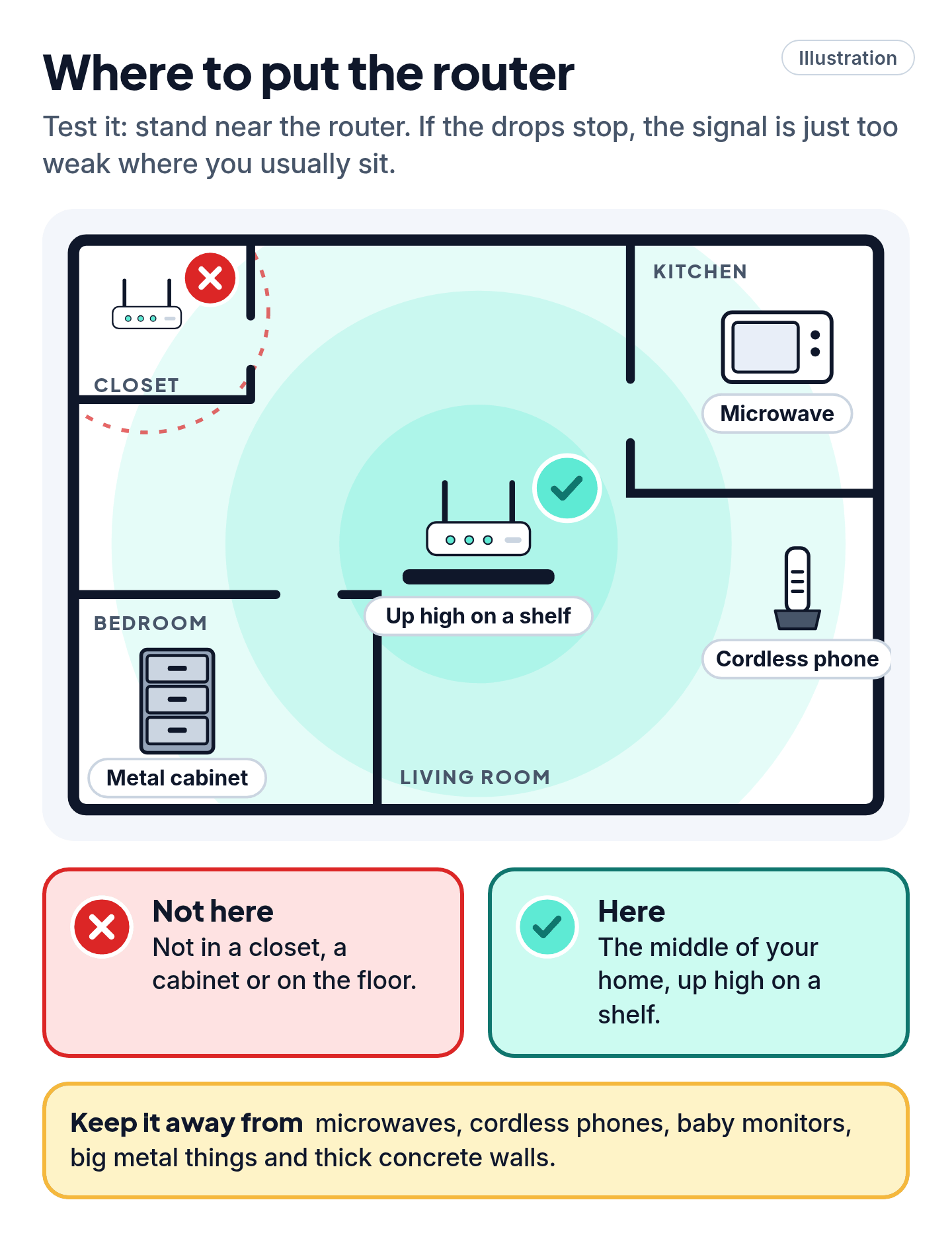
- Test it: stand near the router. If the drops stop, the signal is just too weak where you usually sit.
- Move the router to the middle of your home, up high on a shelf. Not in a closet, a cabinet or on the floor.
- Keep it away from microwaves, cordless phones, baby monitors, big metal things and thick concrete walls.
- For a TV or desktop that never moves, a network cable is the most reliable connection.
4. Pick the right band, and lighten the load
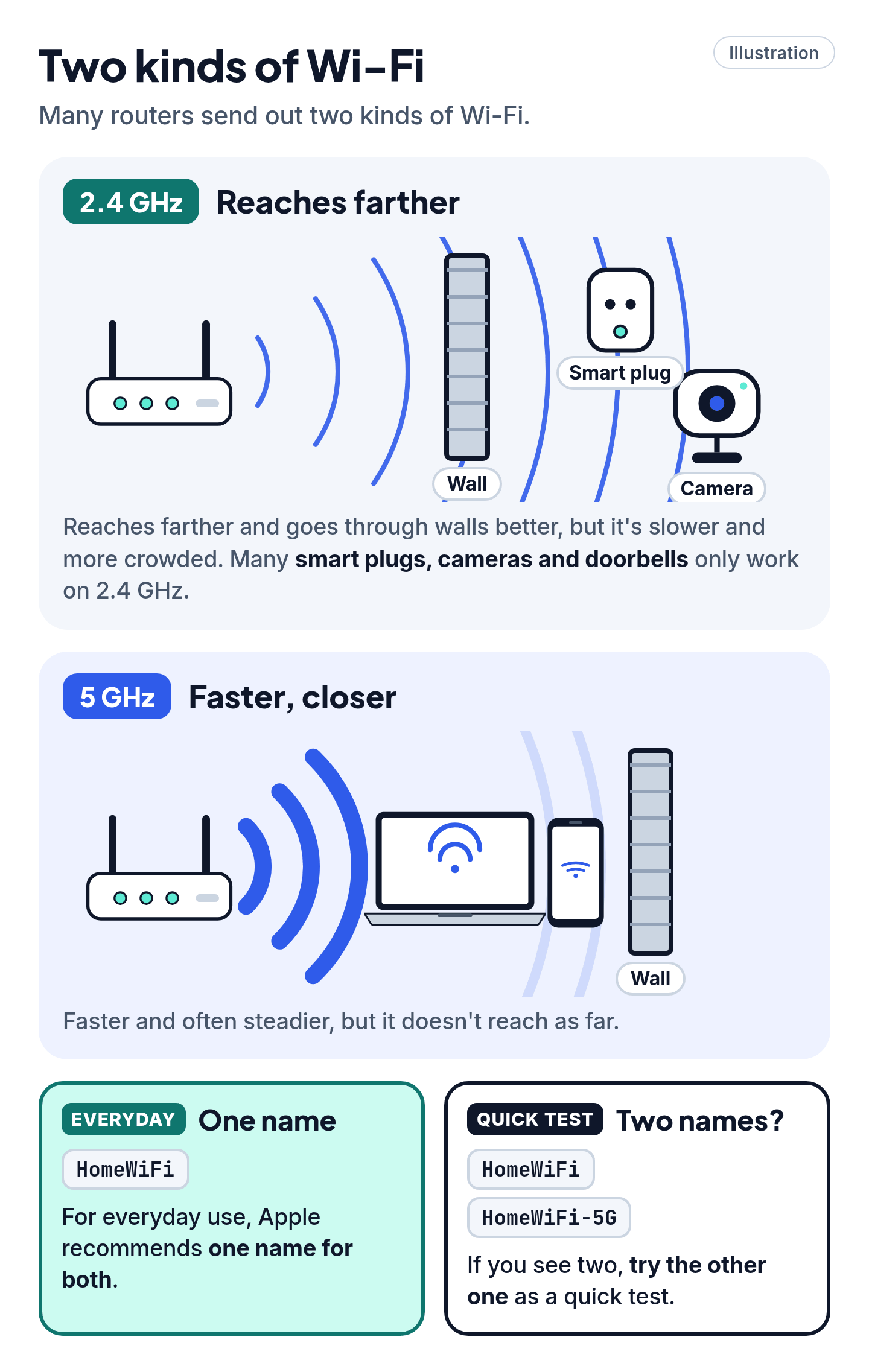
Many routers send out two kinds of Wi-Fi:
- 2.4 GHz reaches farther and goes through walls better, but it's slower and more crowded.
- 5 GHz is faster and often steadier, but it doesn't reach as far.
If you see two network names (for example "HomeWiFi" and "HomeWiFi-5G"), try the other one as a quick test. For everyday use, Apple recommends one name for both (see Pro Mode).
Smart plugs, cameras and doorbells: many of them only work on 2.4 GHz. If one keeps dropping or won't set up, make sure it can reach the 2.4 GHz band (it's usually automatic on one-name networks; for setup, see the cheat code below), and that it isn't at the edge of your Wi-Fi.
Too many devices at once can also cause lag and drops. Turn off tablets and gadgets you're not using.
Cheat code
Setting up a smart plug? Step away from the router. Google suggests that if your phone can't choose a band, you can move farther from the router until it switches to 2.4 GHz, then set the device up.
5. Forget the network, then join it again
You'll need your Wi-Fi password.
- iPhone or iPad: Settings > Wi-Fi, tap the ⓘ next to your network, then Forget This Network (Apple). Join it again.
- Android: Settings > Network & internet > Internet > Saved networks, tap your network, then Forget. Menus vary by phone.
- Windows: Settings > Network & internet > Wi-Fi > Manage known networks, then Forget. On Windows 11, the Get Help app also has a free network troubleshooter.
- Mac: click Wi-Fi in the menu bar. If you see Wi-Fi Recommendations, follow them.
Using a VPN or security app? Turn it off for a moment. Apple says these can block Wi-Fi.
6. Update the router and your devices
- Router: in your router's app, or the admin page printed on its label, look for Firmware Update.
- Very old router? The FBI says routers from 2010 or earlier likely no longer get updates. If your router maker says yours is no longer supported, it's time to replace it.
- Phones and laptops: install system updates.
Skip the scams and upsells
Scam and upsell warning
- Don't call a "Wi-Fi support" number from a search ad or pop-up. The FTC warns that scammers buy ads and rig search results. Real security warnings never ask you to call a number.
- Never give a stranger remote access to your computer.
- Try the free fixes before you buy anything. A faster internet plan won't make the signal stronger in a far bedroom. If you still have dead spots afterward, the FCC says a range extender or mesh system can help.
Already called a scammer? Hang up, change your passwords, and report it at ReportFraud.ftc.gov.
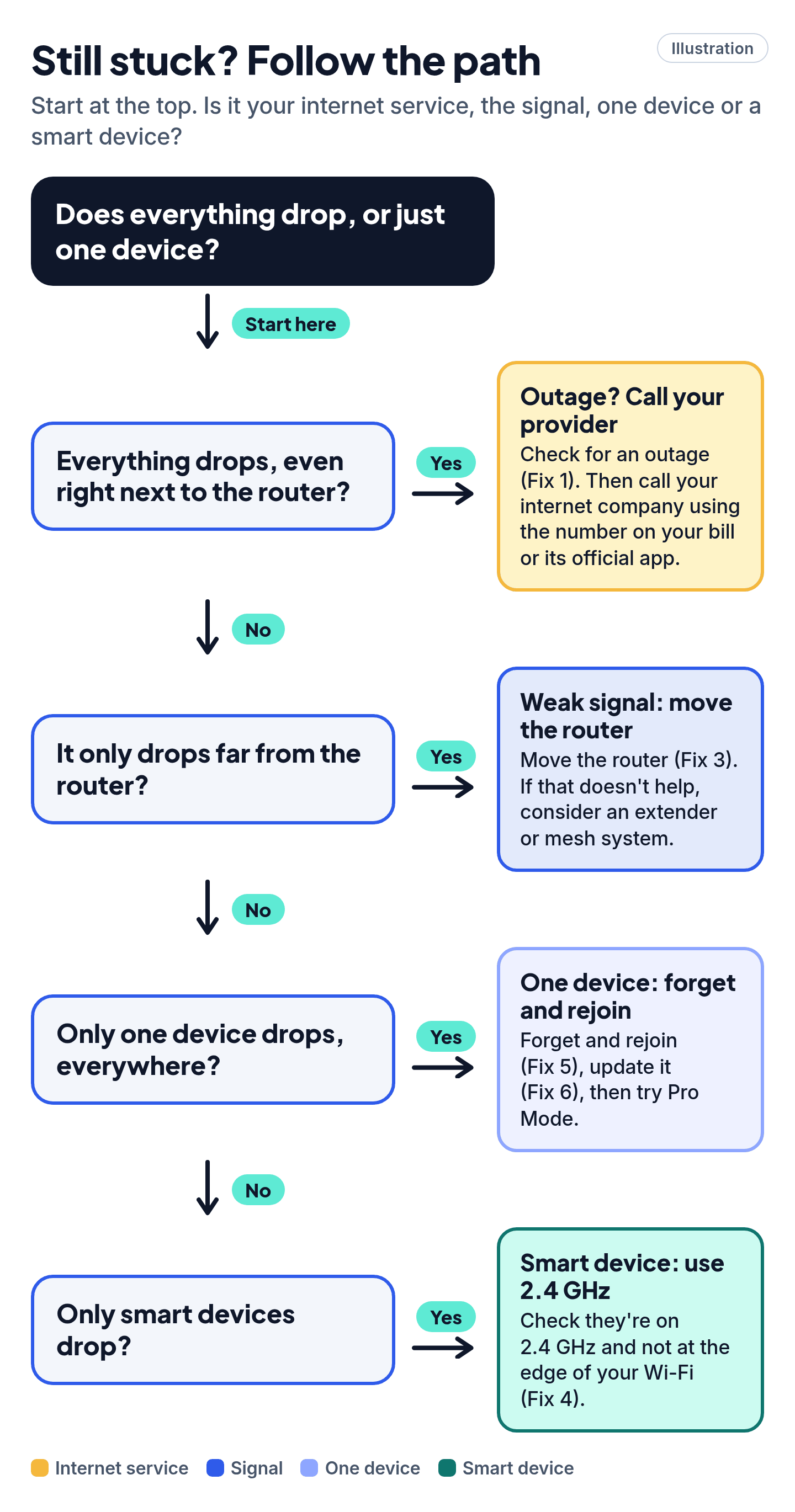
Still stuck? Follow the path
- Everything drops, even right next to the router? → Check for an outage (Fix 1). Then call your internet company using the number on your bill or its official app.
- It only drops far from the router? → It's a signal problem. Move the router (Fix 3). If that doesn't help, consider an extender or mesh system.
- Only one device drops, everywhere? → Forget and rejoin (Fix 5), update it (Fix 6), then try Pro Mode.
- Only smart devices drop? → Check they're on 2.4 GHz and not at the edge of your Wi-Fi (Fix 4).
Pro Mode
Pro Mode Pro Mode: diagnostics, settings and edge cases
Find the weak link. On Windows, run ipconfig, note the Default gateway, then ping it. Replies but no internet means the modem or ISP. No replies means Wi-Fi or the router. If your IP address starts with 169.254, the device didn't get an address from the router (Microsoft). Check that DHCP is on. On a Mac, hold Option, click Wi-Fi in the menu bar, and choose Open Wireless Diagnostics.
See why it disconnected (Windows). In an admin Command Prompt, run netsh wlan show wlanreport. It builds an HTML report of the last three days of Wi-Fi sessions and disconnect reasons. Treat the reason codes as clues, not proof.
Laptop power saving (Windows). In Device Manager > Network adapters > your Wi-Fi adapter > Properties > Power Management, uncheck Allow the computer to turn off this device to save power. In Power Options, set Wireless Adapter Settings to Maximum Performance. Network reset (Windows 11: Settings > Network & internet > Advanced network settings > Network reset) is the last resort: it resets all network adapters, so you may need to set up your VPN again.
iPhone last resort. Settings > General > Transfer or Reset iPhone > Reset > Reset Network Settings. This erases saved Wi-Fi networks and passwords, plus cellular and VPN settings (Apple).
Android app conflicts. Restart in safe mode. If Wi-Fi is stable there, a downloaded app is the likely cause. Uninstall recent apps one at a time.
Private Wi-Fi addresses. Apple devices use a private MAC per network (Off, Fixed or Rotating on iOS 18 and macOS Sequoia 15 and later). Android 10+ uses a randomized MAC by default. If the router uses MAC filtering, parental controls or reservations, a changed address can look like a new device. Update the router's rule rather than turning privacy off, if you can. On Apple devices, forgetting the network (Fix 5) can also give your device a new private address.
Router settings (Apple's recommendations). Back up your router's settings first.
- Use one network name for all bands. Separate names can make devices connect less reliably.
- WPA3 Personal, or WPA2/WPA3 Transitional.
- Channel on Auto, 20 MHz width on 2.4 GHz.
- Only one router handing out addresses (DHCP and NAT). An internet-company gateway plus your own router can cause "double NAT".
- Don't hide the network and don't use MAC filtering.
- Turn on automatic firmware updates.
Fix 4's "try the other name" is a quick test, not a permanent setup. For daily use, keep a single name, and use a separate 2.4 GHz name only while setting up a stubborn smart device.
Smart device can't see your speaker or hub? Google says AP isolation (also called client isolation or guest mode) can block it. Turn that off for your main network.
Security hygiene. The FBI lists connectivity problems, overheating and unfamiliar settings changes as signs of router malware. Patch the firmware, turn off remote management, use a strong admin password and reboot.
You've got this
Often, Fix 2 or Fix 3 does it, and you never need to pay a stranger or buy a booster to find out.
Sources
The 21 pages we checked
- Microsoft Support: Fix Wi-Fi connection issues in Windows
- Microsoft Support: Wi-Fi and your home layout
- Microsoft Support: Analyze the wireless network report
- Apple Support: If you can't connect to Wi-Fi on your iPhone or iPad
- Apple Support: Forget a Wi-Fi network or prevent your device from automatically joining it
- Apple Support: If your Mac isn't connecting to the internet over Wi-Fi
- Apple Support: Use Wireless Diagnostics on your Mac
- Apple Support: Resolve Wi-Fi and Bluetooth issues caused by wireless interference
- Apple Support: Recommended settings for Wi-Fi routers and access points
- Apple Support: Use private Wi-Fi addresses on Apple devices
- Google Pixel Phone Help: How to fix Wi-Fi connection problems
- Android Help: Fix internet connection problems on Android devices
- Android Help: Manage advanced network settings on your Android phone
- Android Open Source Project: MAC randomization behavior
- Google Home and Nest Help: How Wi-Fi bands work (2.4, 5 and 6 GHz)
- Google Nest Help: Troubleshoot Seamless setup devices
- NETGEAR: Router placement tips
- NETGEAR Support: How do I update the firmware on my NETGEAR router?
- FCC: Home Network Tips
- FBI IC3: Cyber Criminal Proxy Services Exploiting End of Life Routers
- FTC: How to spot, avoid and report tech support scams
More free guides are on the way.