
On this page · 8 sections
Quick answer
Turn the printer off and unplug it for 30 seconds. Restart your modem and Wi-Fi router, then your computer, then turn the printer back on. Still offline? Make sure the printer and computer are on the same Wi-Fi, then clear the print queue.
Power-cycle printer, modem, router and PC in that order. Confirm the printer's IP and network name on its network report, clear the queue, uncheck Use Printer Offline if your queue shows it, and restart the Print Spooler. If it keeps dropping, reserve the printer's IP on the router and use a Standard TCP/IP port.
You hit Print, and the printer just says "offline." Good news: it's rarely broken, just out of touch with your computer. That's usually a free, few-minute fix.
Easy Mode: 6 fixes, easiest first
Takes 2 to 20 minutes. Free, and no risk to your files. After each fix, print one page. Stop as soon as it works.
1. Check the obvious (30 seconds)
- Is the printer on? Press any button to wake it up.
- Any error on its screen, like a paper jam or empty ink? Clear that first.
- Are you printing to the right printer? If you see two with the same name, like "Office Printer (Copy 1)", try the other one.
2. Restart everything, in the right order
This or Fix 3 usually does it.
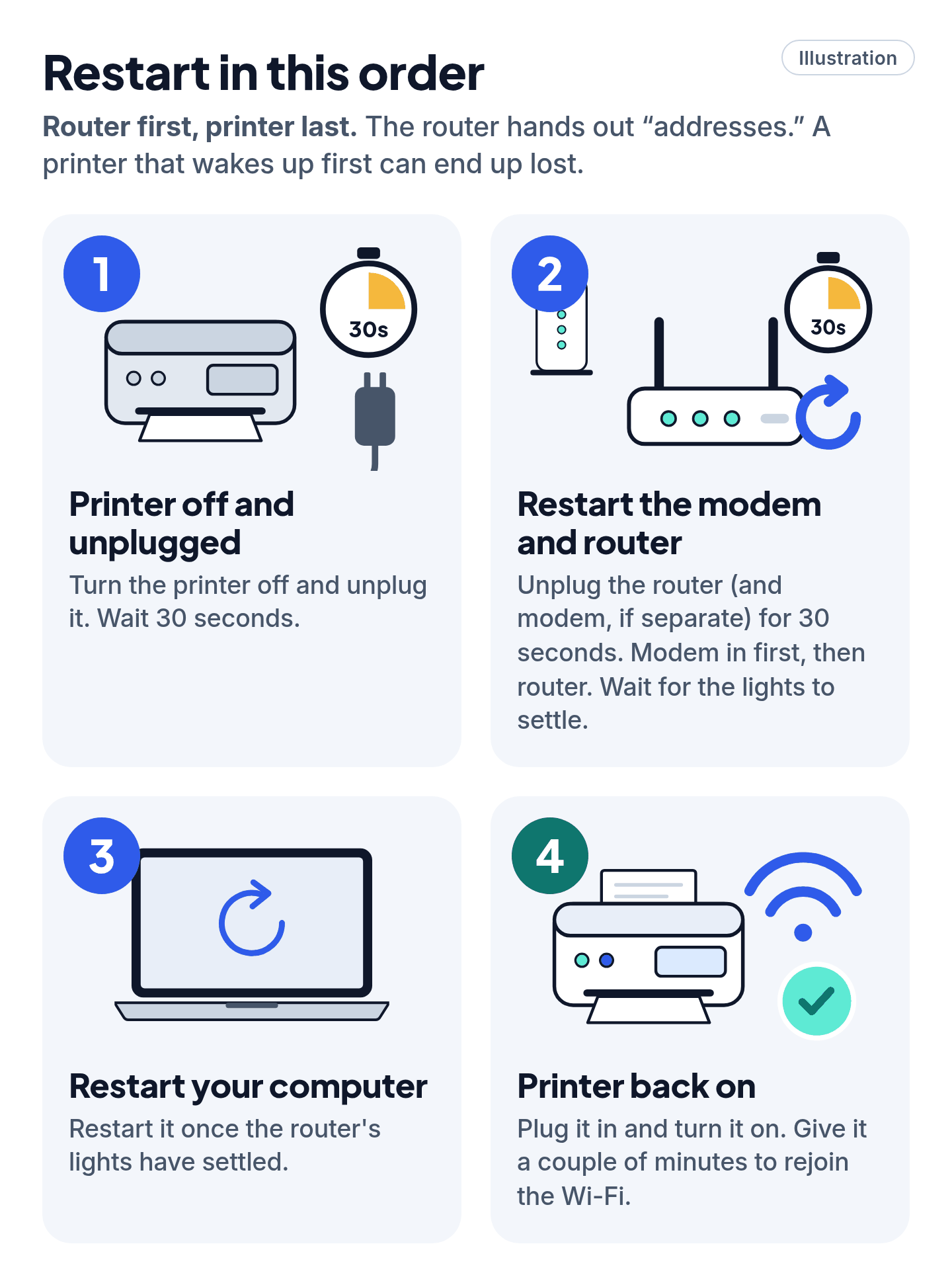
- Turn the printer off and unplug it. Wait 30 seconds.
- Router: unplug it (and the modem, if separate) for 30 seconds. Modem in first, then router. Wait for the lights to settle.
- Restart your computer.
- Plug the printer in and turn it on. Give it a couple of minutes to rejoin Wi-Fi.
Cheat code
Router first, printer last. The router hands out "addresses." A printer that wakes up first can end up lost.
3. Make sure the printer is on the same Wi-Fi
Your printer and computer must be on the same Wi-Fi network (the network name you pick when you join Wi-Fi).
- Check the printer's Wi-Fi light or icon. Not connected? Reconnect it from the printer's Wi-Fi setup menu, using your Wi-Fi password.
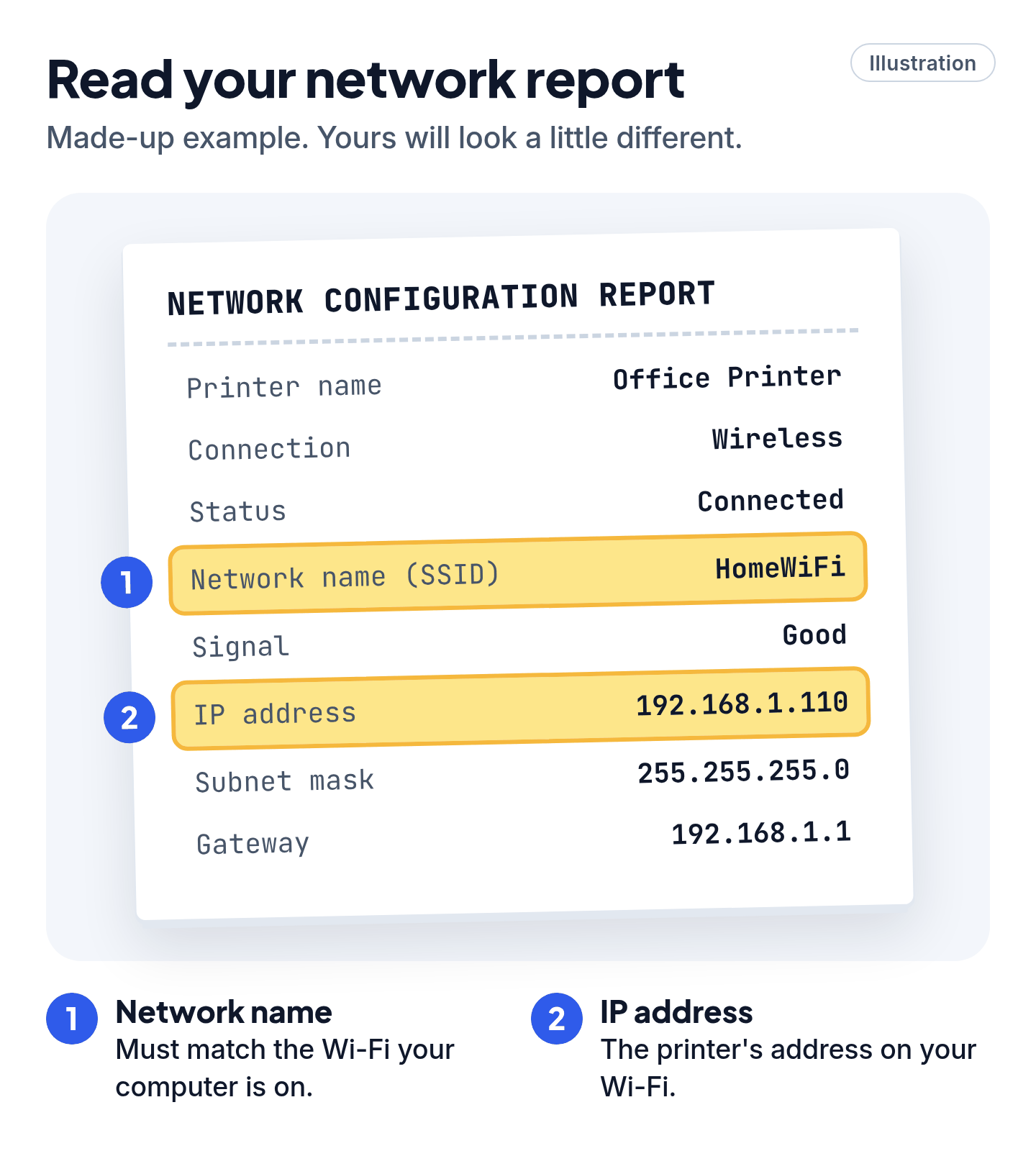
- Print a network report ("network configuration" or "wireless test") from the printer's settings menu. Check that its network name matches your computer's.
- New router or Wi-Fi password? Connect the printer again. It won't update itself.
- Using a VPN? Turn it off for a moment.
- Low signal strength on the report? Move the printer closer to the router (Canon).
- Wi-Fi itself keeps dropping? Try our Wi-Fi checklist.
- USB printer? Plug the cable straight into the computer, not a hub, and try a different cable or port.
4. Clear stuck jobs and turn off "offline" mode
One stuck document can block everything behind it.
Windows 11 and 10
- Open Start > Settings > Bluetooth & devices > Printers & scanners (Windows 10: Settings > Devices > Printers & scanners).
- Click your printer, then Open print queue (Windows 10: Open queue), and cancel everything in it.
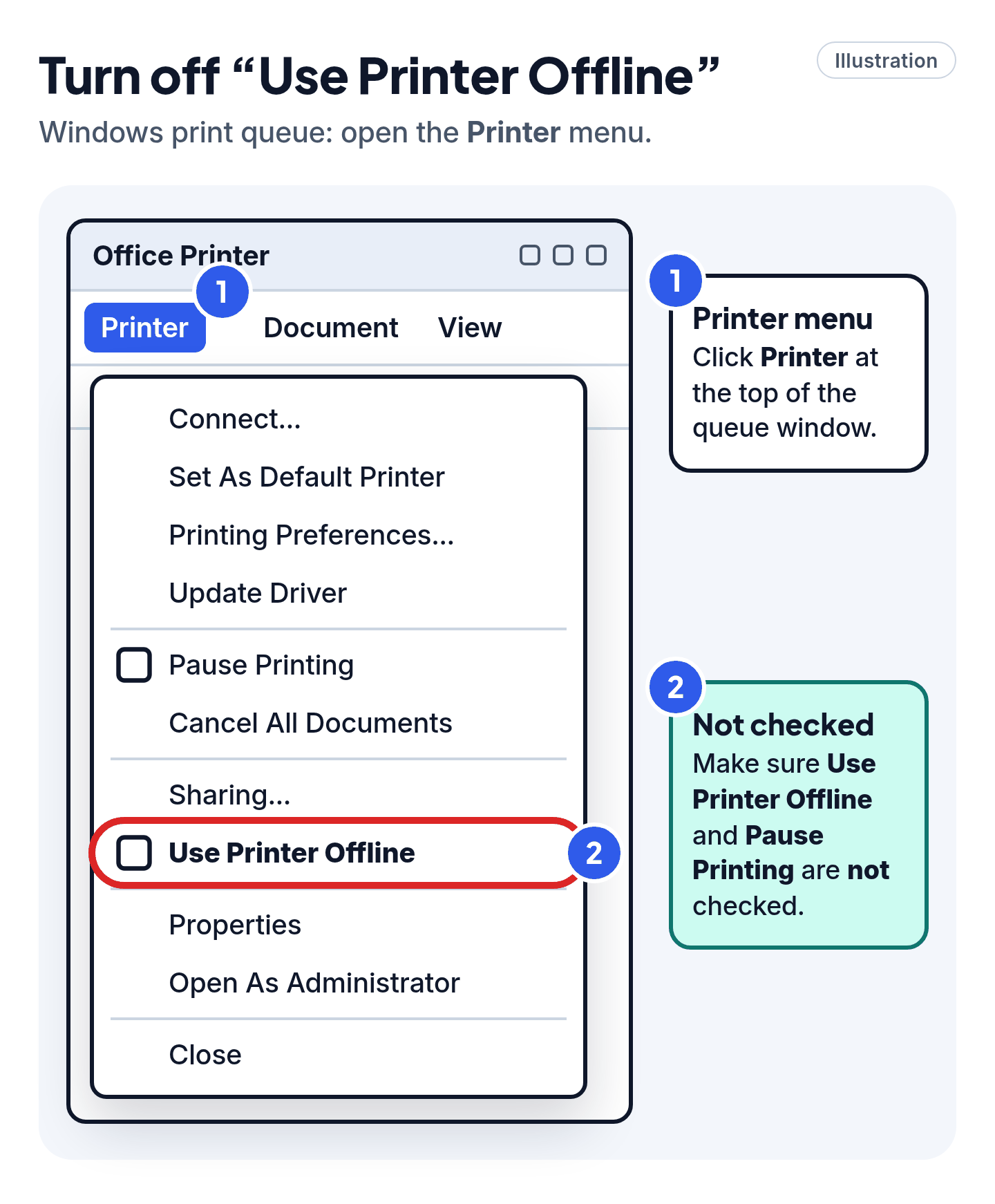
- Windows 10 (and some Windows 11 PCs): if you see a Use Printer Offline option in the print queue's Printer menu, make sure it's unchecked.
Also check that Pause Printing isn't checked.
Windows 10 shortcut: press Windows key + R, type control printers, right-click your printer and choose See what's printing (Canon's shortcut).
Printing to the wrong printer? In Printers & scanners, turn off Let Windows manage my default printer, select your printer, then choose Set as default.
Mac
- Click the Print Center icon in the Dock to open the printer's queue. (On older macOS, it's the printer icon.)
- If the printer is paused, click the Resume button. If one job shows an error, select it and delete it.
5. Remove the printer and add it again
- Windows: in Printers & scanners, click the printer, then Remove. Then choose Add device and pick it from the list. (Windows 10: Remove device, then Add a printer or scanner.)
- Mac: open Apple menu > System Settings > Printers & Scanners, remove the printer, then click Add Printer, Scanner, or Fax.
6. Run the free fixer and update the software, from the real site only
- Windows 11 and 10: run the printer troubleshooter in the Get Help app.
- Get the printer's software (a "driver") or the maker's free repair tool, such as the HP app's Diagnose & Fix, Canon's Wi-Fi Connection Assistant or Brother's Network Connection Repair Tool, only from the official site: support.hp.com, usa.canon.com/support, epson.com/support or support.brother.com.
Cheat code
Type the address, don't search for it. Canon warns that fake support sites copy its logo. Type it in the address bar and bookmark it.
Don't call that number
Scam warning
- Never call a number from a pop-up, a search ad or an unknown "support" site. In 2024, Malwarebytes found that most sponsored ads for HP and Canon printer help came from scammers. Some even open a real brand's site showing a fake number.
- Real warnings never ask you to call. The FTC says so, and HP says it never contacts customers to provide unsolicited technical support. Need HP? Go to support.hp.com.
- Never give a stranger remote access or pay with gift cards. Skip paid "driver fix" tools and cleaner apps: everything above is free.
Already called one? Hang up and change your passwords. If you let them in, run a security scan. If you paid, call your bank. Report it at ReportFraud.ftc.gov.
Still stuck? Follow the path
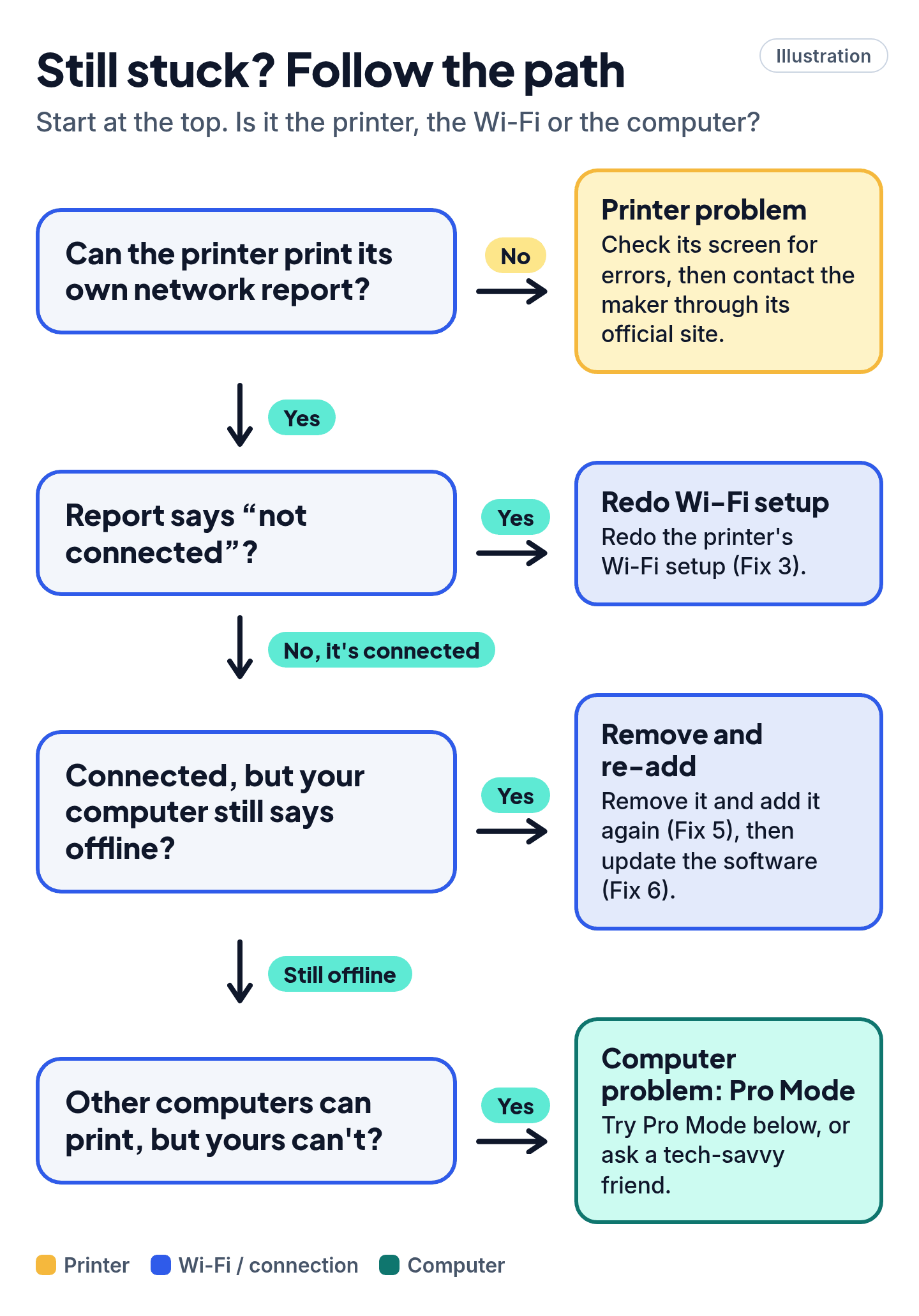
- Can the printer print its own network report? No → it's the printer. Check its screen for errors, then contact the maker through its official site.
- Report says "not connected"? → Redo the printer's Wi-Fi setup (Fix 3).
- Connected, but your computer still says offline? → Remove it and add it again (Fix 5), then update the software (Fix 6).
- Other computers can print, but yours can't? → It's your computer. Try Pro Mode below, or ask a tech-savvy friend.
Pro Mode
Pro Mode Pro Mode: causes, commands and edge cases
What "offline" really means
The computer lost contact with the printer's address. Usual causes: a new IP from the router, a different network (extenders, guest Wi-Fi), a job wedged in the spooler, or a stale "Copy 1" queue.
Restart and clear the Print Spooler (Windows)
Quick version: open Services, right-click Print Spooler, choose Restart.
Full reset, per Microsoft: stop Print Spooler in Services, delete the files in %WINDIR%\system32\spool\PRINTERS, then start the service again with Startup type Automatic. From an admin terminal:
net stop spooler
del /Q /F %WINDIR%\system32\spool\PRINTERS\*
net start spooler
Check the IP and port
- Print the printer's network report and note its IP. Run
ipconfigon the PC. On most home networks, the first three numbers should match (e.g. 192.168.1.x). ping <printer IP>. No reply means a network problem, not a driver problem.- Stop the address changing: reserve the printer's IP in your router (a DHCP reservation) or set a static IP on the printer.
- In Printer properties > Ports: if the printer's IP address changed, adding a Standard TCP/IP port pointing at its current IP often helps (HP). If it still shows offline, some people find clearing the SNMP Status Enabled checkbox under Configure Port helps, but you may stop seeing ink and paper levels.
Edge cases
- Mac, last resort: in Printers & Scanners, Control-click the printer list and choose Reset Printing System. This removes all printers and presets, so you'll add them again afterward.
- ARM PCs (such as some Copilot+ PCs): Microsoft says some ARM PCs can't add a printer with the manufacturer's installer. Add it through Windows Settings instead (Microsoft).
- Grayed out on Windows 10? Choose Open As Administrator in the queue window (Brother).
- Printer looks different or shows fewer options? Since July 1, 2026, Windows 11 prefers Microsoft's built-in IPP class driver over manufacturer drivers. From July 1, 2027, third-party printer drivers get security fixes only, though existing ones still install (Microsoft Learn). Microsoft doesn't link this to "offline" errors.
- Firewall or security software can block printer discovery. Test briefly, then switch it back on.
- USB: Plug the cable straight into the computer, not a hub, and try a different cable or port.
You've got this
For most people, Fix 2 or 3 does it, and Fix 5 often sorts out the rest. You never need to call a stranger or pay for a mystery tool.
Fixed it? Share this with the person who always calls you about the printer.
Sources
The 22 pages we checked
- Microsoft Support: Troubleshooting offline printer problems in Windows (includes the ARM PC note)
- Microsoft Support: Fix printer connection and printing problems in Windows
- Microsoft Support: Set a default printer in Windows
- Microsoft Support: How to run Control Panel tools by typing a command ("control printers"; an older article)
- Apple Support: Solve printing problems on Mac (includes Reset printing system)
- Apple Support: Printing troubleshooting (macOS High Sierra) (older Dock icon wording)
- HP Support: Printer offline
- HP Tech Takes: Why is my HP printer offline?
- HP: Fraud alert
- HP: Printer troubleshooting FAQs
- Canon U.S.A.: "The printer is offline" when printing across a network (Windows)
- Canon U.S.A.: Printer is Offline over USB (PIXMA TS302)
- Canon U.S.A.: Resolve Printer is Offline or Not Responding (Windows)
- Canon U.S.A.: Wi-Fi Connection Assistant downloads
- Canon U.S.A.: Official Canon product support (avoid scams)
- Brother: The printer status is Offline or Paused
- Brother: I cannot print on a wireless network (Windows)
- Microsoft Learn: Standard port monitor for TCP/IP
- Microsoft Learn: End of servicing plan for third-party printer drivers on Windows
- FTC: How to spot, avoid and report tech support scams
- Malwarebytes: Printer problems? Beware the bogus help (Nov 29, 2024; scam research, not a vendor page)
- Malwarebytes: Scammers hijack websites … to insert fake phone number (Jun 18, 2025; scam research)
More free guides are on the way.