On this page · 9 sections
Quick answer
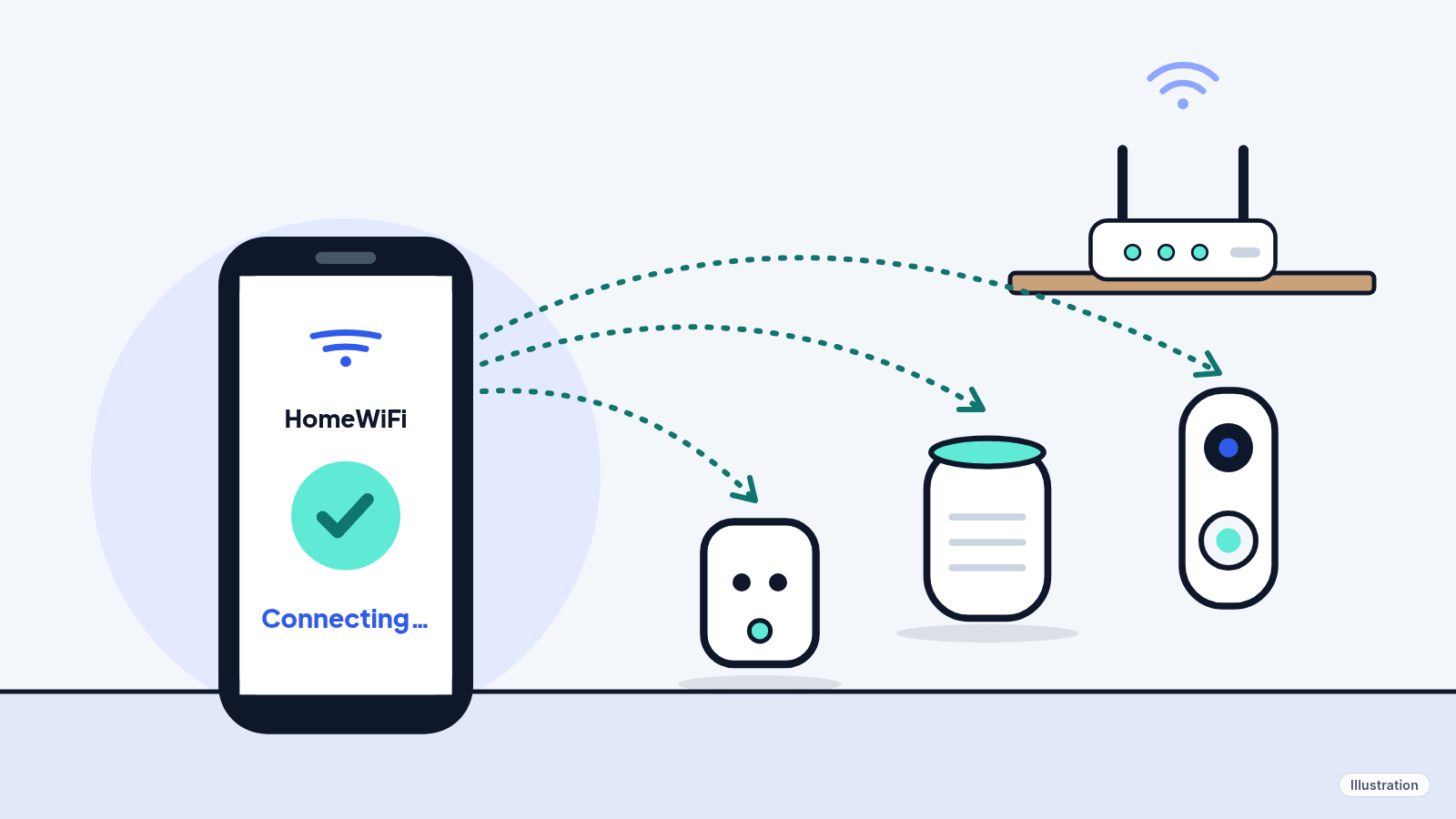
Update the device's app, keep your phone on home Wi-Fi with Bluetooth on, and allow the app's location and local network permissions. Put the device in setup mode (a blinking or orange light), stand close to the router, and make sure it can reach the 2.4 GHz band. Still stuck? Restart everything, then reset the device and start over.
Most failures are phone-side permissions (Bluetooth, Location, iOS Local Network), the device not being in setup or pairing mode, or the network: 2.4 GHz-only radios on a band-steered single SSID, WPA3 or PMF the device doesn't support, AP or client isolation, captive portals, special characters in the SSID. Matter needs a Matter controller or hub and IPv6 on the LAN; Thread devices also need a Thread border router.
The app spins, then says "Couldn't connect." The plug blinks at you. The speaker never shows up. Good news: most smart home setup failures come down to a few fixable things, and none of them cost money.
Easy Mode: 7 fixes, easiest first
Takes 5 to 30 minutes. Free, and nothing you already have set up is touched until the last-resort reset. Try setup again after each fix.
1. Get the basics right before you start
- Use the right app, fully updated: Alexa, Google Home, Apple Home, Ring, Kasa, Philips Hue, or whatever the box says. Amazon, Google and Ring all list an outdated app as a common cause.
- Keep your phone on your home Wi-Fi, the same network the device will use. Not mobile data, and not a hotel or guest network.
- Turn off any VPN or security app on your phone while you set up. TP-Link and Apple both say these can block setup.
- Stand in the same room as the device, with the device fairly close to your router for now. You can move it later.
2. Give the app the permissions it asks for
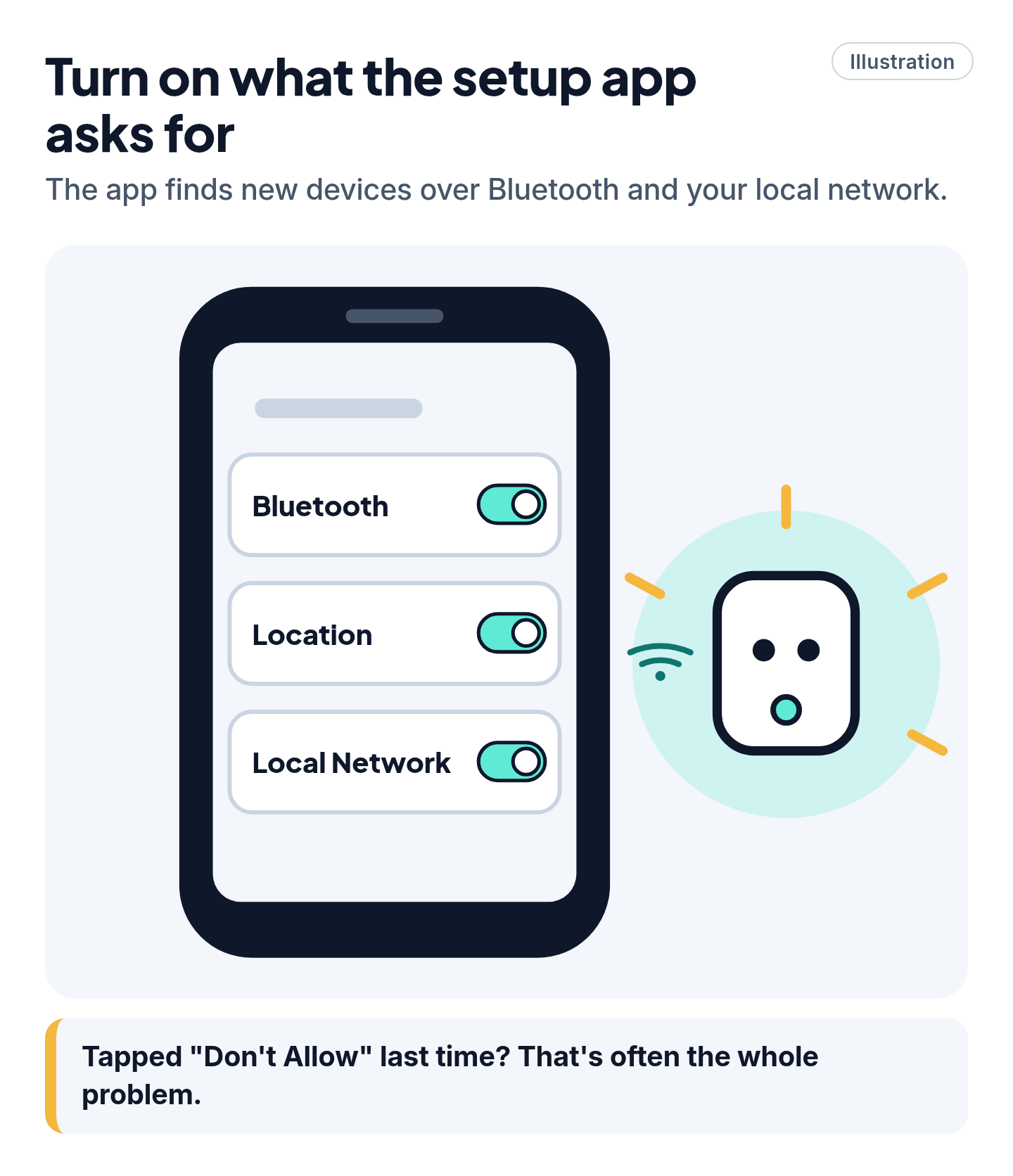
Setup apps find new devices over Bluetooth and your local network, so they need permission.
- iPhone or iPad: turn on Bluetooth (Settings > Bluetooth). Then go to Settings > Privacy & Security > Local Network and turn it on for the device's app (Apple).
- Android: turn on Bluetooth and Location. For the Google Home app, Google says to go to Settings > Location, turn on Use location, then App location permissions > Home. Menus vary by phone.
If you tapped "Don't Allow" on a pop-up during an earlier try, that's often the whole problem.
3. Make sure the device is actually in setup mode
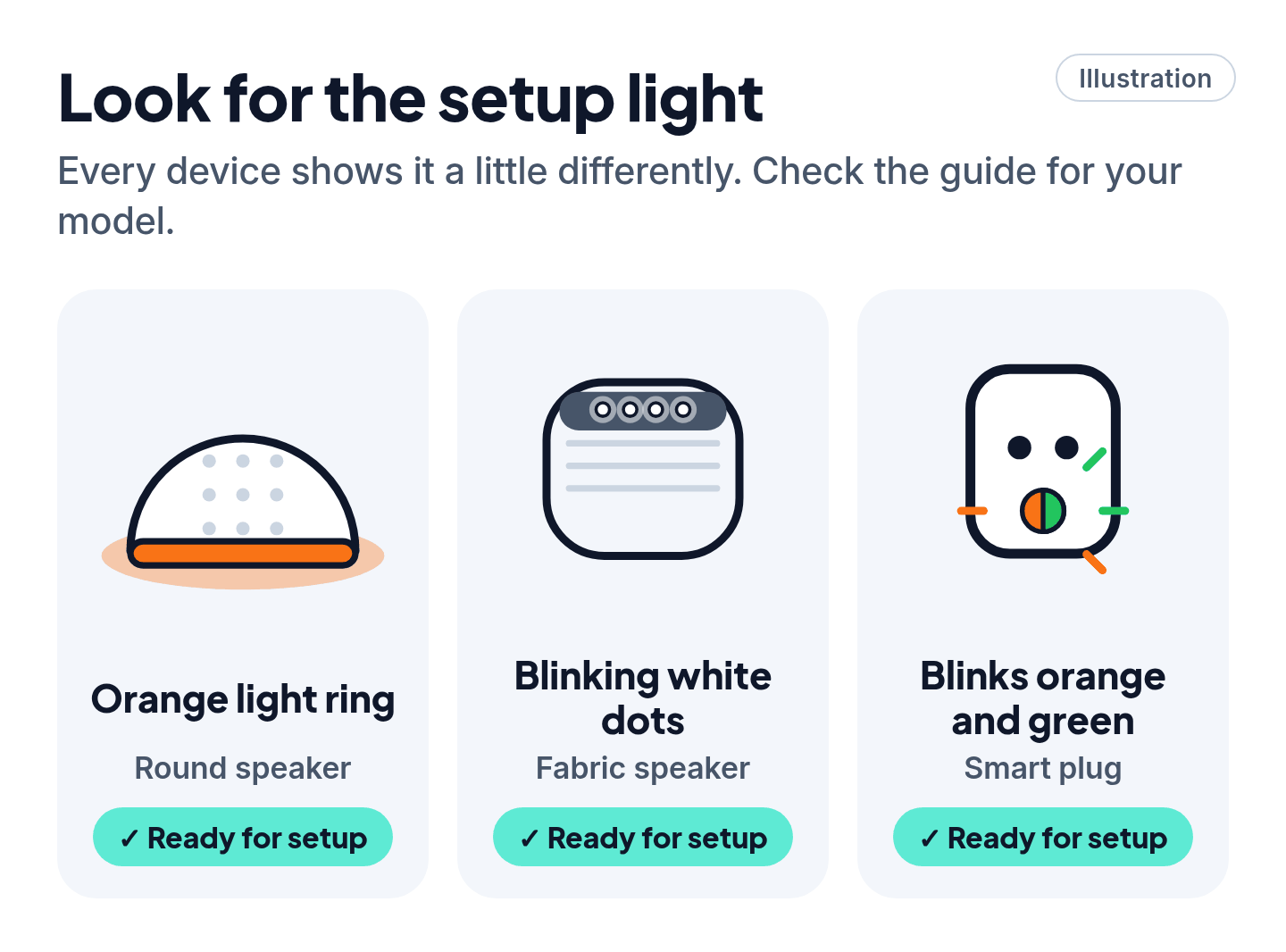
The app can only find a device that's waiting to be set up. Look for the setup light:
- Amazon Echo: an orange light means setup mode, or that it's trying to get online (Amazon's Echo light guide).
- Google speakers: blinking white lights mean it's on and in setup mode.
- Kasa smart plugs: the Wi-Fi light blinks orange and green.
- Ring cameras and doorbells: check Ring's light pattern guide for your model.
- HomePod: unlock your iPhone and hold it right next to the HomePod until the setup card appears.
No setup light? Unplug the device for 30 seconds and plug it back in. If it was set up before, maybe with an old router or by someone else, it may need a reset first (Fix 7).
4. Let it reach the 2.4 GHz band
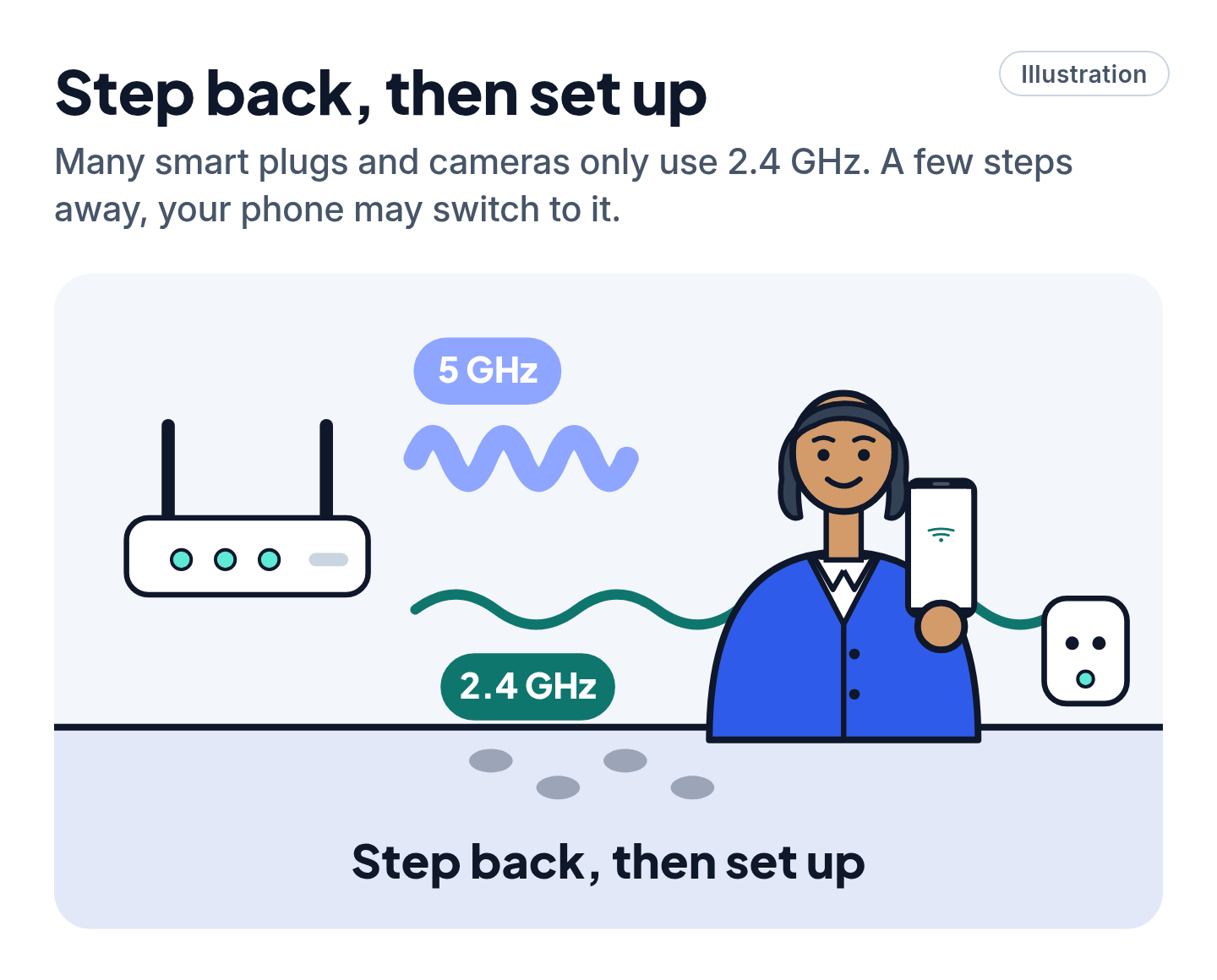
This is the big one. Many smart plugs, cameras and older gadgets only work on 2.4 GHz Wi-Fi, not 5 GHz. Amazon says to connect smart home Wi-Fi devices on 2.4 GHz, and TP-Link says Kasa plugs don't support 5 GHz at all.
- Two network names (for example "HomeWiFi" and "HomeWiFi-5G")? Join your phone to the 2.4 GHz one for setup.
- Just one network name? Most routers handle this for you. If setup still fails, Google's tip is to move farther from the router until your phone switches to 2.4 GHz, then try setup again.
- Apple Home says "network is incompatible"? Apple says to check that your iPhone is on a network that supports 2.4 GHz.
Our Wi-Fi guide explains the two bands, and what to do if the device drops off later.
Cheat code
Double-check the password on your phone first. Ring's tip: on your phone, forget your Wi-Fi network and join it again with the password. If your phone won't connect with it, the device won't either.
5. Check for network names and networks devices dislike
- Special characters: Ring says to remove symbols such as apostrophes, spaces, !, @, # or & from your network name if setup keeps failing.
- Long or quoted passwords: for Kasa devices, the password can't be over 64 characters or contain quote marks.
- Hotel, dorm and "sign-in page" networks: Kasa devices don't work with them. A home network is best.
- Phone hotspots: Apple doesn't recommend them for HomePod. Amazon does suggest trying your phone's hotspot as a setup test for an Echo.
6. Restart everything, then try another phone
- Unplug the device, wait 30 seconds, and plug it back in. Amazon recommends this for Echo speakers.
- Restart your router if other devices are struggling too.
- Force-close the setup app, restart your phone, and try again.
- Still nothing? Try a different phone or tablet. Google and Ring both suggest it.
7. Last resort: reset the device and start over
A factory reset erases the device's settings, so use it only after Fixes 1 to 6. Every brand does it differently, so use the official guide for your model (search the maker's support site for "reset" plus the model number):
- Amazon, Google, Ring and TP-Link each have a reset page in their help centers. The button and how long to hold it differ by model.
- HomePod: Apple says to reset it if it doesn't show up as an option when you add it in the Home app.
Then set it up again from Fix 1.
Matter and Thread, in plain English
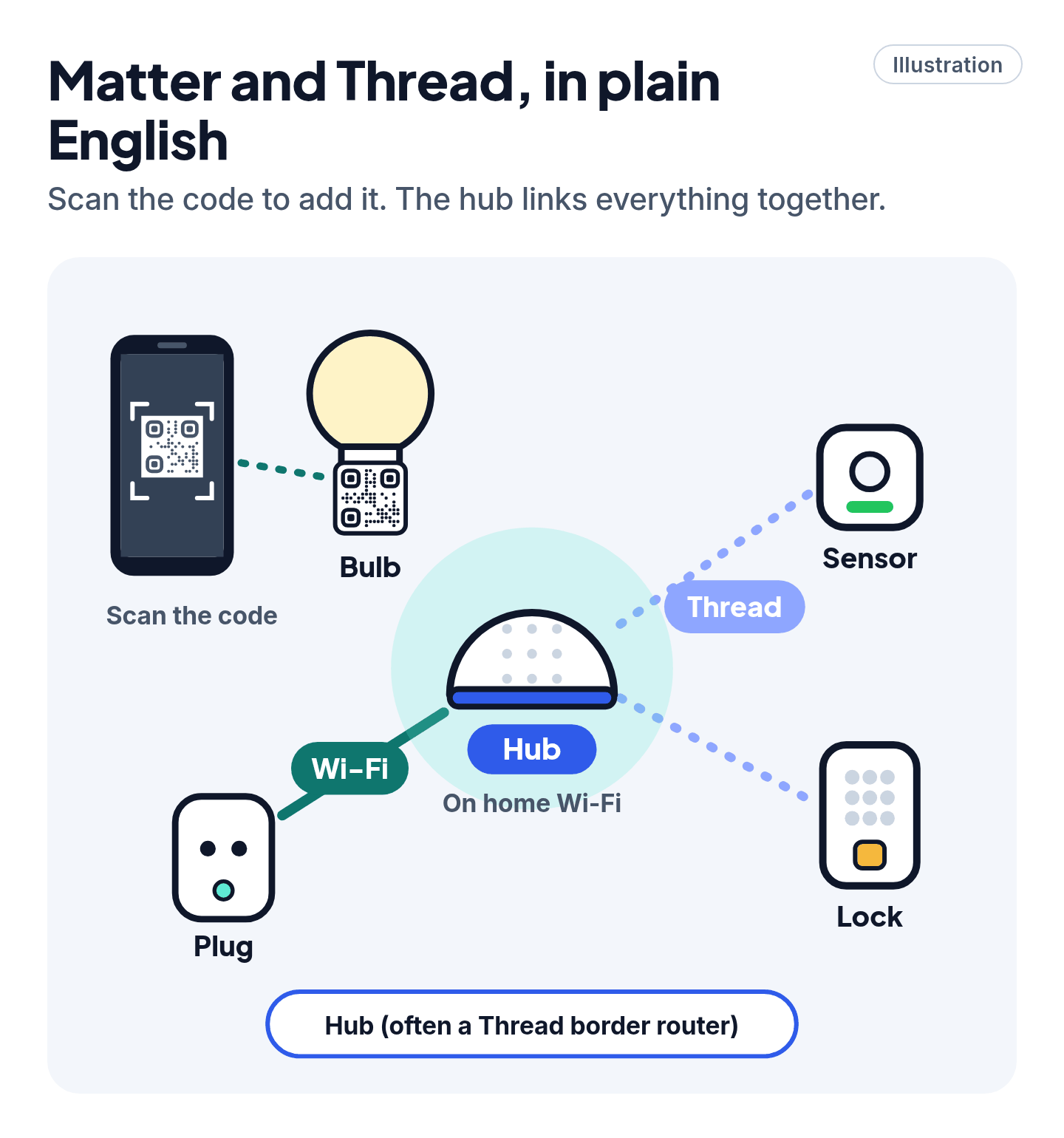
Matter is a shared standard so one device can work with Alexa, Google Home and Apple Home. Look for the Matter logo on the box. It connects over Wi-Fi or Thread, and uses Bluetooth to set up (CSA).
- You set it up by scanning its QR code in your smart home app. It's usually on the device or in the box.
- Google Home needs a Matter-enabled hub, such as a Nest speaker or display, already set up on your Wi-Fi.
- Apple Home: Apple recommends a home hub (HomePod, HomePod mini or Apple TV). iPhones on iOS 18 or later can add Matter accessories without one.
- Alexa: a Matter Wi-Fi device must be on the same 2.4 GHz network as your compatible Echo, and Matter devices should be within about 30 feet of it during setup.
- Thread devices need a "Thread border router." Many hubs already have one built in, including the HomePod mini, HomePod (2nd generation), Apple TV 4K (2nd generation, or 3rd generation Wi-Fi + Ethernet), Nest Hub (2nd gen), Nest Hub Max and Nest Wifi Pro. An iPhone 15 Pro or later on iOS 18 can also pair Thread accessories. Check what you own before buying anything.
Skip the scams and upsells
Scam and upsell warning
- Don't call a "setup help" number from a search ad or pop-up. Fake support lines pose as Alexa, Ring and other big brands. Use the Help section inside the official app, or the brand's official support website you typed in yourself.
- Never give a stranger remote access to your phone or computer, and never pay "support" with gift cards.
- You probably don't need to buy anything. A new router, extender or hub fixes very few setup failures. The one real exception is a Thread-only device that says it needs a Thread border router when nothing you own has one. The device's box or app will tell you if it needs one.
Not sure if a call or message was real? Check our guide to spotting scams.
Still stuck? Follow the path
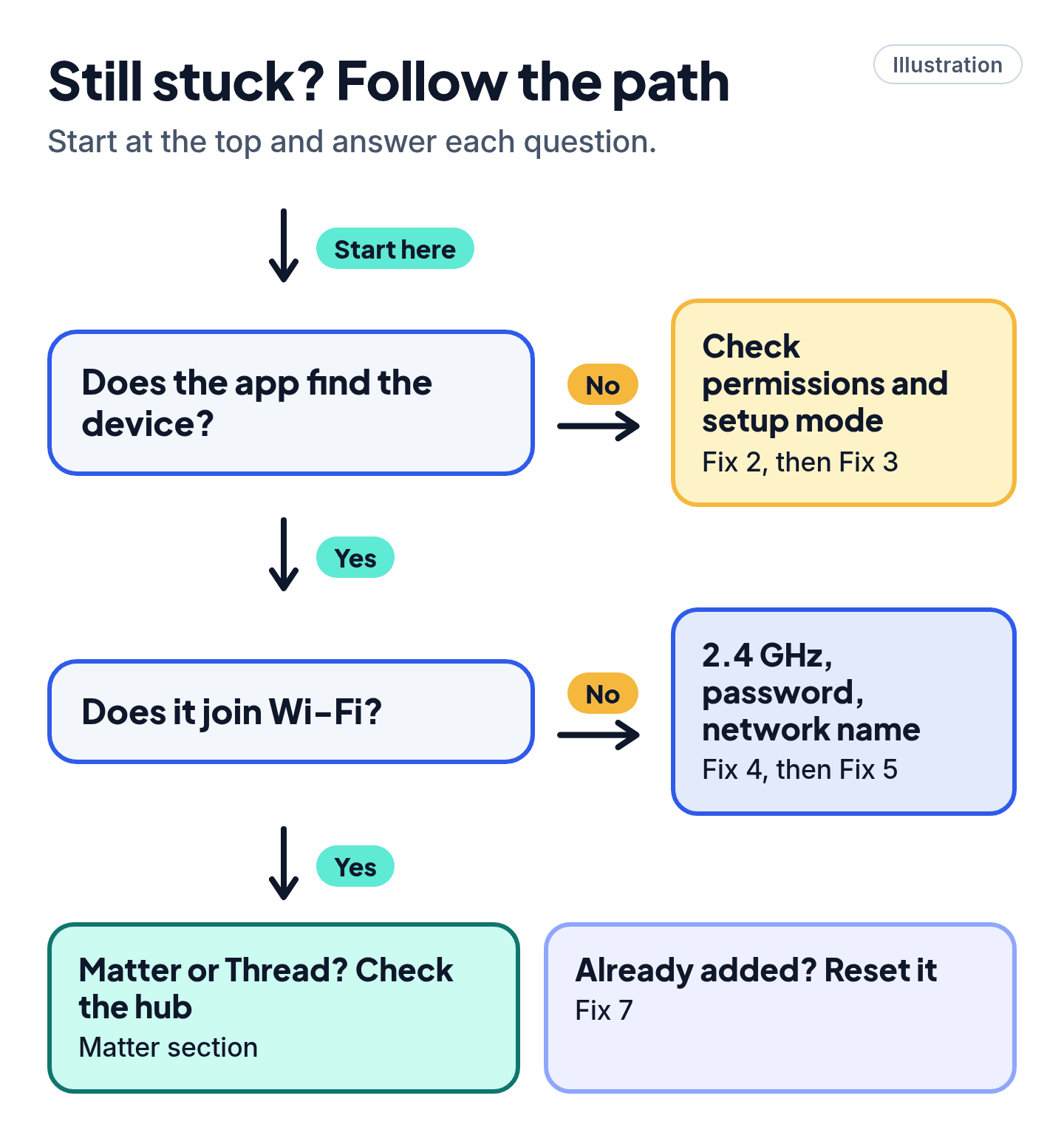
- The app never finds the device? → Permissions (Fix 2), then setup mode (Fix 3).
- It finds the device but fails at "connecting to Wi-Fi"? → 2.4 GHz (Fix 4), then the password and network name (Fix 5).
- It says "already added" or "used in another home"? → Reset it (Fix 7). Apple says accessories used in another home may need a reset.
- It's a Matter or Thread device? → Check you have a hub and, for Thread, a border router (Matter section).
- Works in the maker's app but not in Alexa or Google? → In the Alexa app, check Devices first: it may already be there. Then see Pro Mode.
Pro Mode
Pro Mode Pro Mode: router settings, Matter and edge cases
Router security mode. Ring says some older models (Video Doorbell 3, 3 Plus and 4, Stick Up Cam Pro, Spotlight Cam Pro) show "Incompatible network" on WPA3. Switch to WPA2-Personal and, if there's a PMF / Protected Management Frames option, set it to Disabled. Or use a separate 2.4 GHz WPA2 network if your router offers one. TP-Link suggests WPA2 + AES for stubborn Kasa devices.
Channels and width. Leave your router's channels on Auto first, with 20 MHz width on 2.4 GHz, the same advice as our Wi-Fi guide. If a 2.4 GHz device such as a Kasa plug still won't join, TP-Link suggests setting 2.4 GHz to channel 1, 6 or 11 as a fallback. You can also give 5 GHz a different network name, or turn 5 GHz off temporarily during setup. Turn it back on afterward.
Don't split names for HomePod. Apple's 6 GHz advice runs the other way: for HomePod, all routers on your network should use the same name on every band. Split names only for the device that needs it, and only during setup.
AP or client isolation. If a Kasa plug shows a solid green or blue light but never appears in the app, TP-Link says to check whether AP isolation or client isolation is on.
IPv6 for Matter. Google says Matter needs IPv6 on your home network. Without it, setup can look like it worked, then control fails later. Check your router's settings or ask your internet company.
Mesh and second routers. Ring says more than one router can cause problems. Use one router, or put the second one in bridge mode.
5 GHz in Ring's restricted regions. In Canada, Europe, the UK, Australia, New Zealand and Japan, Ring devices can't use 5 GHz channels 36 to 64. Ring suggests channels 100 to 165 for 5 GHz there.
Philips Hue Bridge. It doesn't use Wi-Fi at all: plug it into your router with the Ethernet cable, using a main port on the router. The three lights show power, network and internet. If the app can't find the bridge, Hue says to tap I need help > More options and search by IP address (find it in your router's device list using the MAC address on the back of the bridge). To reset, press the button on the back for 5 seconds with a paperclip.
Alexa says "No new devices found." Amazon says Frustration-Free Setup may have already added it. Check Devices. Non-Matter Wi-Fi devices connect through the maker's skill. If the maker's app works but Alexa doesn't, reactivate the skill.
Google Home setup freezes on a Matter device. Google says to restart the device, close the app, clear the Google Home app's cache (Android: Settings > Apps > Google Home > Storage & cache > Clear cache), restart the phone and try again.
Use one device in several apps (Matter Multi-Admin). In Google Home, touch and hold the device tile, then Settings > Linked Matter apps & services > Link apps & services. Each app needs its own Matter hub.
HomePod mini flashing orange. Apple says it's plugged into a computer, or into an adapter that isn't rated 20W. Use a 20W adapter.
"Thread Border Router Required" on iPhone. Apple says to restart the hub, use the Apple Account that owns the home, connect an Ethernet-connected Apple TV to Wi-Fi instead, and check for a VPN or security app. Battery Thread accessories may need a firmware update for iOS 18.
You've got this
Most "won't connect" problems come down to a permission, a setup light or the 2.4 GHz band. Work through them in order, and you'll rarely need a reset, and almost never a new gadget.
Sources
The 19 pages we checked
- Amazon Help: Echo Device Is Having Wi-Fi Issues (Amazon's help site)
- Amazon Help: Echo Device Can't Connect to Wi-Fi During Setup (Amazon's help site)
- Amazon Help: My Smart Home Device Doesn't Connect to Alexa (Amazon's help site)
- Amazon Help: What Do the Lights on Your Echo Speaker Mean? (Amazon's help site)
- Google Home and Nest Help: Can't find Google smart speaker or display in the Google Home app (Android)
- Google Home and Nest Help: Can't find Google smart speaker or display in the Google Home app (iPhone and iPad)
- Google Home and Nest Help: How Wi-Fi bands work (2.4, 5 and 6 GHz)
- Google Home and Nest Help: Prepare your smart home for Matter
- Google Home and Nest Help: Set up, manage, and control Matter-enabled devices with Google Home
- Apple Support: If you can't add a smart home accessory to the Home app
- Apple Support: If you can't set up HomePod or HomePod mini
- Apple Support: If you see a 'Thread Border Router Required' or 'Needs Thread Network' alert
- Apple Support: If an app would like to connect to devices on your local network
- Ring Help: Fixing setup issues
- TP-Link: Is your Kasa device not connecting? Troubleshooting setup issues
- TP-Link: How to set up a Kasa smart plug via the Kasa app
- Philips Hue: How to connect Hue Bridge to Wi-Fi?
- Philips Hue: Why isn't the third light on my Bridge on?
- Connectivity Standards Alliance: Matter smart home standard
More free guides are on the way.