
On this page · 8 sections
Quick answer
Check the ink or toner level first. Then pull each cartridge, peel off any leftover tape and click it back into its own color slot. Print a test or nozzle check page. Gaps or missing colors? Run your printer's printhead cleaning, but stop at your brand's limit and let it rest before trying again.
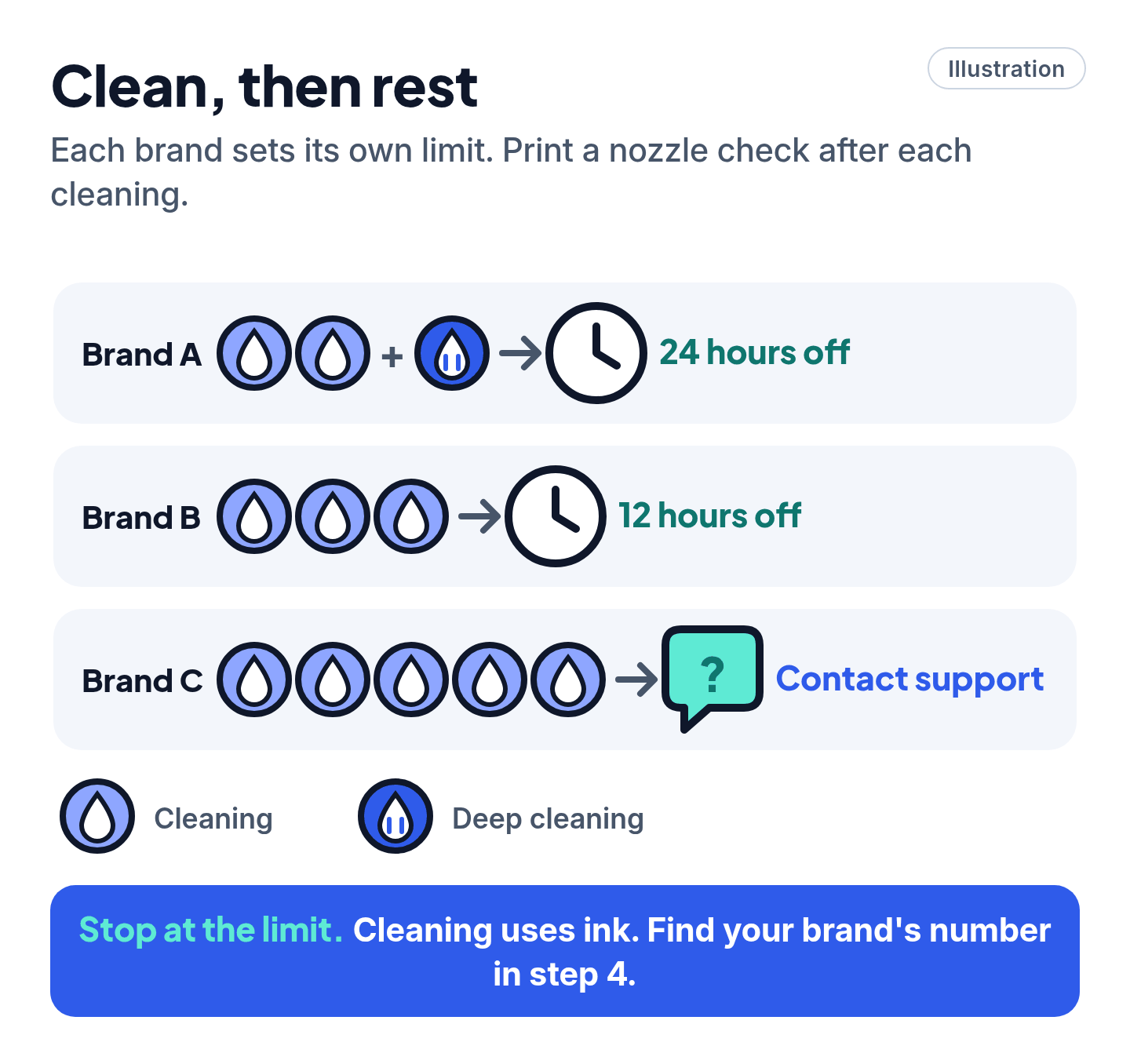
Isolate it with a printer-generated page: if the self-test prints fine, check the print settings next (color, paper type and size, quality). If it's blank or gapped, it's ink delivery: cartridge seating, tape, empty or dried cartridge, or clogged nozzles. Brand limits before you stop cleaning: HP 3 cycles, Canon 2 standard plus 1 deep (then a 24-hour rest), Epson 3 standard or 1 power cleaning (then at least 12 hours off), Brother up to 5 (then contact Brother).
Between them, HP's, Canon's, Epson's and Brother's support pages point to the same few checks for blank or streaky prints: the ink, the cartridges, a test page and a printhead cleaning. Work through them in order and stop when your prints come out clean.
These steps are for a printer you own. If it's a work, school or office printer, or one you lease, ask that organization's IT team before you open it up or change settings. Menus vary by model and country; the steps below follow the U.S. support sites of HP, Canon, Epson and Brother.
Easy Mode: fix blank or streaky prints, quickest first
Free to try. Cleaning uses some of the ink you already have, and two brands ask for a rest of 12 or 24 hours. Printer not printing at all, or showing as offline? Start with our printer offline fixes instead.
1. Check the ink or toner level
HP's first check for blank pages is the ink or toner level: replace any cartridge that's low or empty.
- Where to look: on the printer's screen, or in the maker's app on your computer. Canon's manual, for example, covers both. Menus vary by model.
- Ink tank printers (the kind you refill from bottles): Our read: look at the level in each tank, and top up any color that's low.
Replace or refill anything that's low or empty, then print again.
2. Check the cartridges: tape, slot and fit
Our read: check this first if the blank pages started right after you put in a new cartridge.
These are HP's steps:
- Open the cartridge door and wait until the carriage is still before you reach in.
- Lift out each cartridge, holding it by the sides, and peel off any protective tape that's still on it.
- Keep your fingers off the copper-colored contacts and the nozzles. HP says touching them can cause clogs, ink system failures and bad electrical connections, and Brother warns that touching the print head can damage it permanently.
- Put each one back in the slot marked with its color and push until you hear a click. Close the door.
Refilled or third-party ink? Brother says non-Brother or refilled ink may hurt print quality or make the printer malfunction, and its limited warranty doesn't cover problems caused by third-party supplies. HP recommends its own genuine cartridges. Our read: if streaks started right after a switch to refills, try a new cartridge from the printer's maker in that one color before you do anything drastic.
3. Print a test page from the printer itself
HP uses this test page to decide what to do next.
- Print a nozzle check (some brands call it a print quality report or check sheet). Look for it in the printer's maintenance or tools menu, or in the printer's app on your computer. On HP printers that have an information button, HP says pressing it prints a test page straight from the printer.
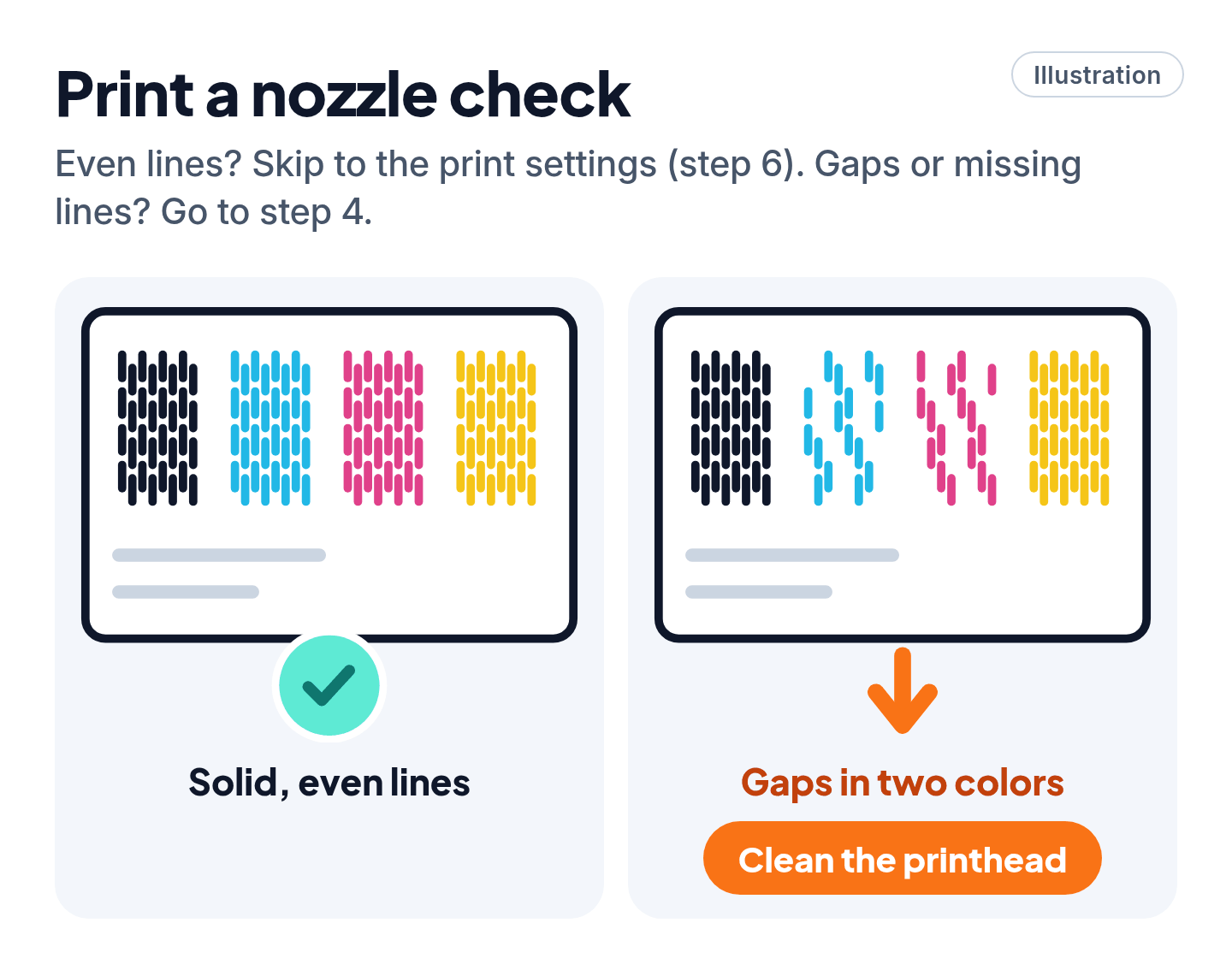
- Test page looks fine? HP says to skip to the print settings (step 6).
- Test page is blank, faint or has gaps in the lines? Go to step 4.
4. Clean the printhead, up to your brand's limit
Load plain white paper first. Then start the cleaning from the printer's maintenance or tools menu, or from the printer's app on your computer. The name of the option varies by brand and model. After each cleaning, print another nozzle check.
Each maker sets a limit on how many cleanings to run in a row:
| Brand | What the maker says |
|---|---|
| HP (inkjet) | Up to 3 cleaning cycles in total. Still bad after the third? Replace the cartridges. |
| Canon | 2 standard cleanings. If that doesn't help, run 1 deep cleaning. |
| Epson | Up to 3 standard cleanings, or 1 power cleaning. |
| Brother | Up to 5 cleanings, printing the check page after each. Still poor after 5? Contact Brother. |
Cheat code
Stop at the limit. Canon and Brother both warn that cleaning uses ink, and Brother says going past 5 cleanings wastes it. Epson says the ink flushed out during cleaning collects in a maintenance box. Canon and Epson build a long rest into their instructions instead (step 5).
5. Let it rest, then try once more
Canon and Epson both tell you to switch off and wait before the next round. The wait depends on the brand:
- HP: HP says a badly clogged printhead may need another cleaning cycle, but to wait at least 30 minutes before running it.
- Canon: turn the printer off, wait 24 hours, then run 1 more deep cleaning.
- Epson: switch it off for 12 hours or longer. Then print another nozzle check, and clean again only if it still shows gaps.
- Brother: no wait is given. Turn it off with its power button rather than pulling the plug: Brother printers clean the print head on their own from time to time, which they can't do while unplugged.
6. Check your print settings
If the printer's own test page looks fine but your documents don't, HP's next step is to check that your color, paper (type and size) and quality settings suit the job.
- Paper type: set it to match the paper that's loaded.
- Quality: Our read: a draft or economy setting saves ink and can look pale, so try normal quality before blaming the printer.
- Color: make sure the color setting suits the job (for example, not grayscale when you want color).
- Windows: in the app you're printing from, choose File > Print, then open the printer's options, setup or preferences (the name depends on the app).
- Mac: HP suggests opening the file in Preview and choosing File > Print to see the printer's settings.
Don't call a "printer support" number from a search ad
Scam warning
- Never call a number from a pop-up, a search ad or an unknown "support" site. Our printer offline guide explains why. Reach the maker only through its official support site, typed in yourself.
- Drivers and apps: download them only from the printer maker's official site, never from a link a stranger sends.
- You run a printhead cleaning yourself, from the printer's menu or the maker's app. Never give a stranger remote access to your computer for it.
Still stuck? Find your situation
| What you see | Possible cause | What to do |
|---|---|---|
| Brand-new cartridge, blank pages | Tape or tab left on | Step 2: remove it, reseat the cartridge |
| One color missing on every page | That color is empty or its nozzles are blocked | Steps 1, 3 and 4 |
| Still gaps after cleaning and a rest | Empty, dried-out or faulty cartridge | Replace that cartridge (HP and Canon both list this as the next step) |
| Test page fine, documents streaky | Print settings | Step 6 |
| Laser printer, blank or faded pages | Low toner | See Pro Mode |
| Nothing above works | Worn or damaged print head | Contact the maker through its official support site (below) |
Official support sites: HP at support.hp.com, Canon at usa.canon.com/support, Epson at epson.com/support and Brother at support.brother.com. Search there for your printer model.
Pro Mode
Pro Mode Pro Mode: printer utilities, laser printers and the last resort
Run cleaning from your computer. Handy if your printer has no screen.
- HP: open the HP app, pick your printer, and find the print quality tools in its diagnostics or tools section. HP's pages name the cleaning button two ways (printhead or cartridges), so pick whichever your app shows.
- Canon (Windows): open Canon IJ Printer Assistant Tool. It has a standard cleaning and a deeper one, and lets you print a check pattern afterward.
- Epson: on Windows, right-click your printer's icon at the right side of the taskbar (click the up arrow first if it's hidden). On a Mac, open the Apple menu > System Settings (System Preferences on older versions of macOS), go to the printers pane, select your printer, then open its options and supplies and the printer utility. Choose the nozzle check, then clean if it shows gaps.
Epson's last step before support. If 3 cleanings or 1 power cleaning, a 12-hour rest and another round still don't help, Epson's next step is a power ink flushing, and after that, Epson support.
Canon's last step before service. After the 24-hour rest and a second deep cleaning, Canon's next step on models that use FINE cartridges, such as the MG3500 series, is a new cartridge. Still bad? Contact Canon service.
HP laser printers. HP's laser steps use a cleaning page instead of a printhead cleaning. Check the toner level first. Then print a test page from the printer. Blank? HP's next step is a cleaning page (your model's support pages explain how to print one). If even that comes out empty, replace the toner cartridge.
Update the firmware. HP lists a firmware update as one of its steps for blank pages. Get it only from the maker's official support site for your model.
Out of warranty? HP notes repair fees can apply. Our read: on a cheap inkjet, compare the repair quote with the price of a new printer before paying.
You've got this
Check the ink, peel the tape, print a test page, clean up to your brand's limit, then give it a rest. If it still won't print cleanly, follow your brand's last step in Still stuck and Pro Mode, or contact the maker through its official support site.
Sources
The 9 pages we checked
- HP Support: HP printer prints blank pages
- HP Support: HP inkjet printers, alignment issues and errors
- HP Support: HP ink cartridge issues, including incompatible, missing and not recognized errors
- Canon: TR7600 series online manual, Cleaning the Print Heads
- Canon: MG3500 series online manual, Cleaning the Print Head Deeply
- Epson: Printer problems and troubleshooting
- Epson: Checking the nozzles and cleaning the print head using a computer utility
- Brother: One or more of my colors are not printing (blank)
- Brother: Improve poor print quality
More free guides are on the way.