On this page · 7 sections
Quick answer
Use a device that's already on your Wi-Fi. iPhone: Settings > Wi-Fi > tap the Info button next to your network > tap Password. Windows 11: Settings > Network & internet > Properties > Show. Android: share a QR code from your Wi-Fi settings. Never changed it? It's on the sticker on your router.
Mac: Passwords app > Wi-Fi, or System Settings > Network > Wi-Fi > Advanced > More > Copy Password (macOS 13 or later). Windows 10: Network and Sharing Center > your Wi-Fi > Wireless Properties > Security > Show characters. On a router you own, log in to its admin page (routerlogin.net on NETGEAR, tplinkwifi.net on TP-Link) and check the wireless settings. A factory reset of your own router is the last resort.
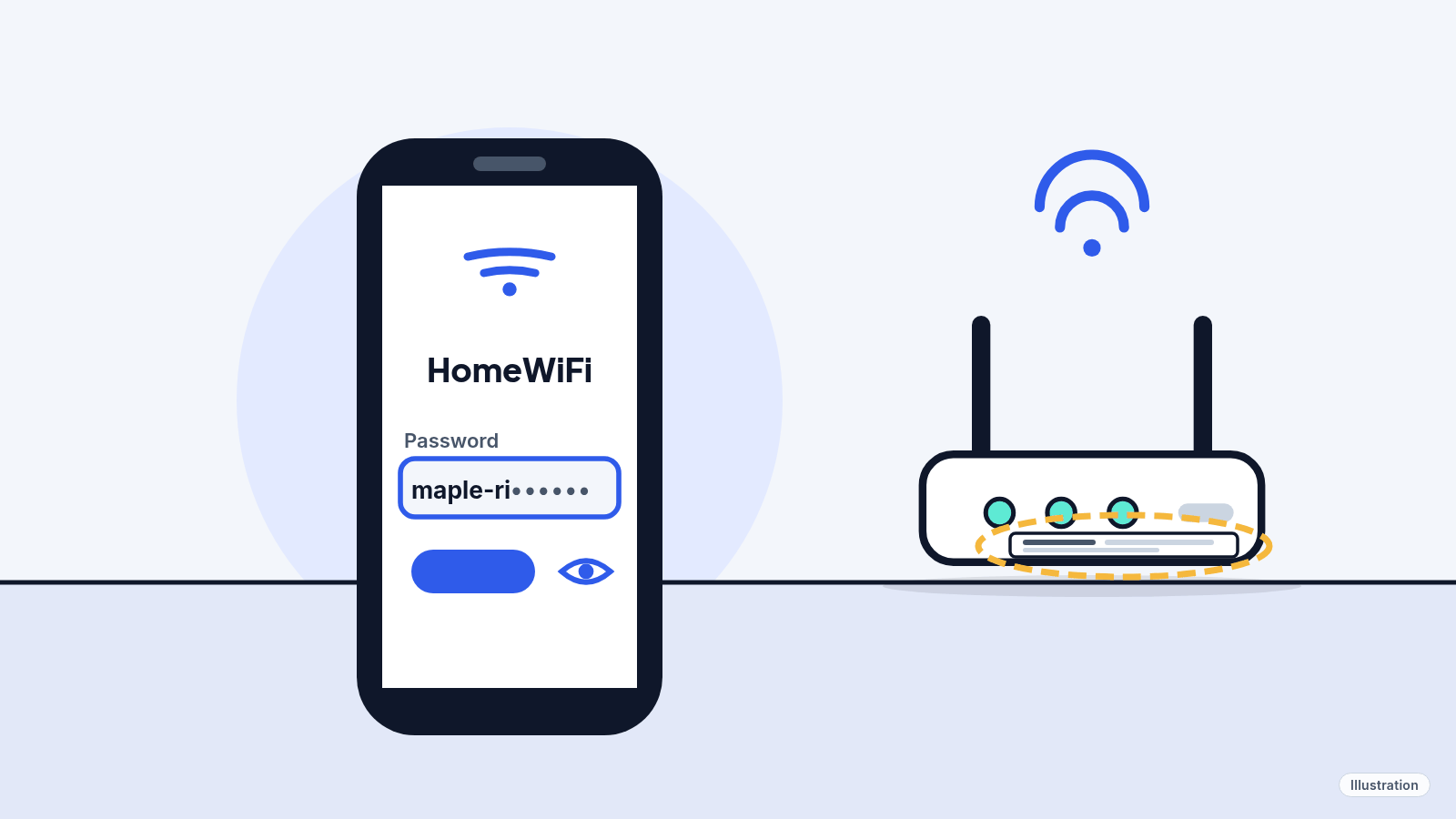
A guest asks for the Wi-Fi password, or the new TV wants it, and nobody remembers. Good news: any phone or computer that's already connected can usually show you the password in under a minute. These steps are for your own Wi-Fi, or a network you have permission to use.
Easy Mode: 6 ways to find it, easiest first
Takes 1 to 5 minutes. Free, and nothing gets changed or reset. Stop when you have it.
1. Check the sticker on your router
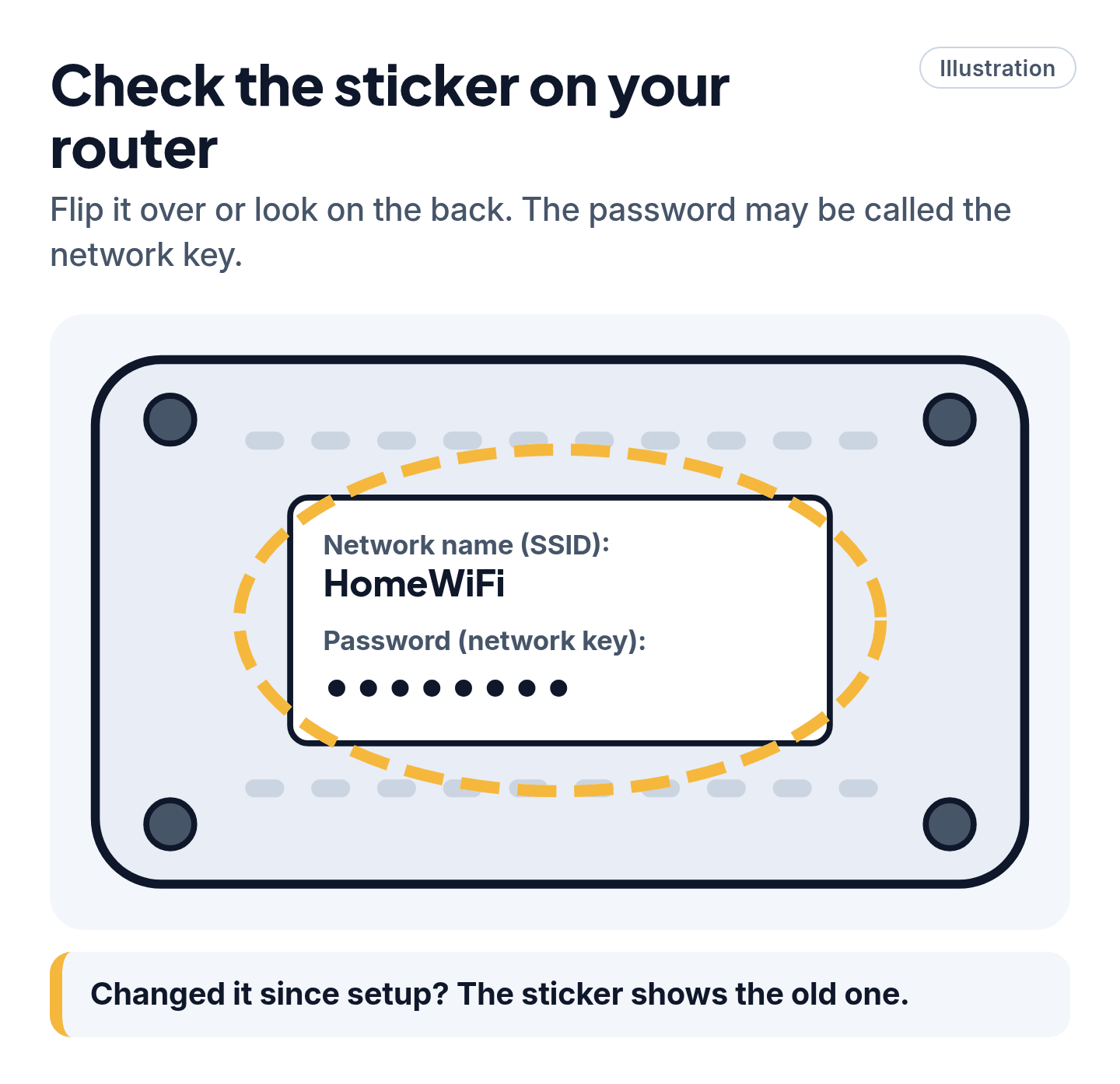
If nobody ever changed the password, it's printed on a label on the router, usually on the bottom or back. It may be called the password or network key, next to the network name (SSID).
Changed it since setup? The sticker shows the old one. Use a phone or computer that's already connected instead (ways 2 to 6).
2. Let an iPhone share it for you
If someone in the house has an iPhone, iPad or Mac that's already on the Wi-Fi, it can send the password to another Apple device. No typing needed.
- On the new device, tap your Wi-Fi network's name.
- On the connected device, tap Share Password when it pops up, then Done.
It works when both devices are unlocked, close together and signed in to an Apple Account, with Wi-Fi and Bluetooth on and Personal Hotspot off. Each of you also needs the other's Apple Account email or phone number saved in Contacts.
3. See it on an iPhone
Works on iOS 16 and later.
- Open Settings and tap Wi-Fi.
- Tap the Info button (the "i") next to your network.
- Tap Password, then use Face ID, Touch ID or your passcode to reveal it.
Not connected to it right now? In Settings > Wi-Fi, tap Edit (top right) to see networks you've joined before. On iOS 18 and later, the Passwords app also lists them: open it and tap Wi-Fi.
4. Share it from an Android phone as a QR code
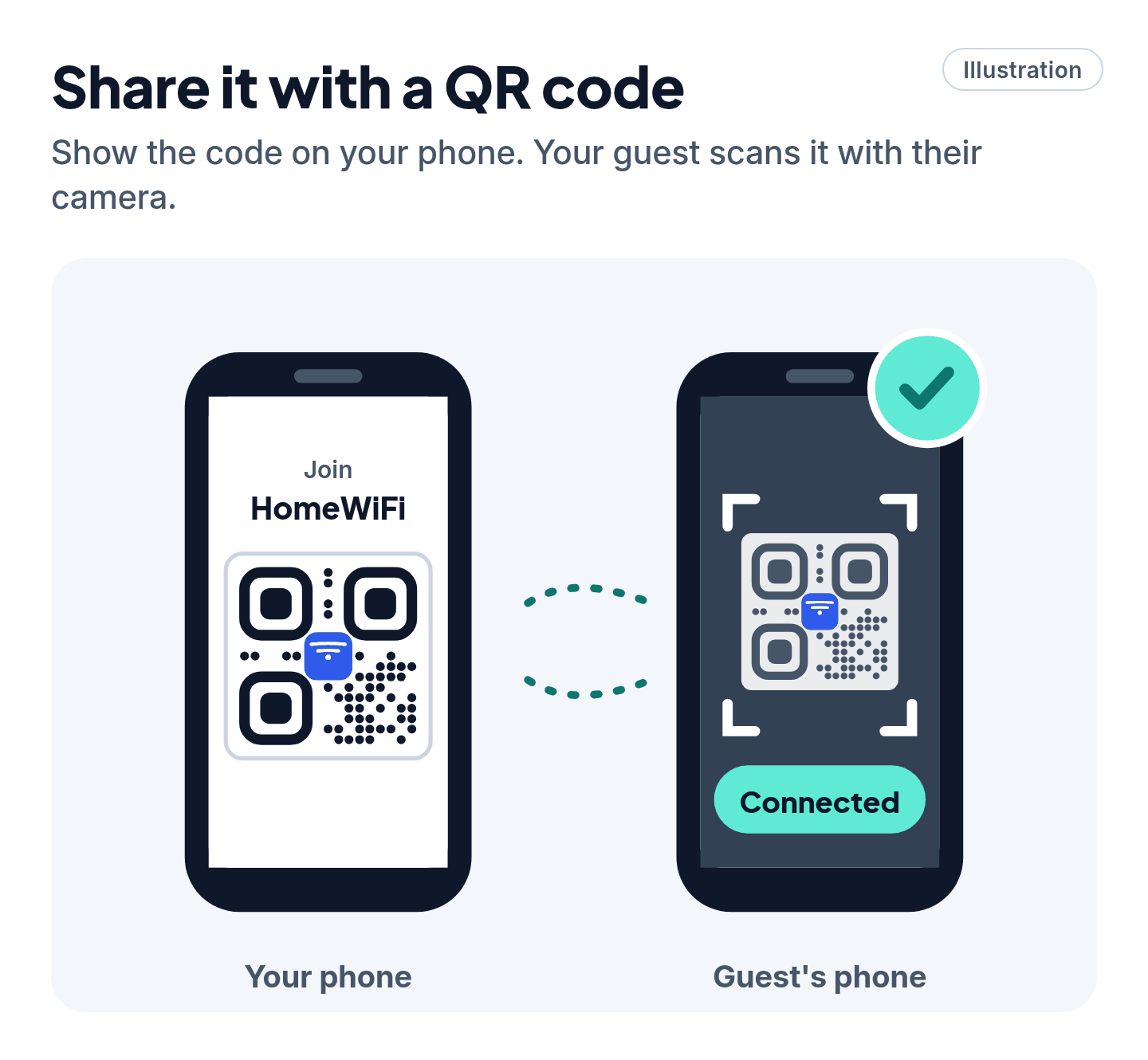
Android phones turn your Wi-Fi into a QR code that another phone scans with its camera.
- Google Pixel and most Android phones: Settings > Network & internet > Internet > tap your network > Share.
- Samsung Galaxy: Settings > Connections > Wi-Fi > tap the Settings (gear) icon next to your network > QR code. Menus can vary by model and software version.
The phone must be connected to that network.
Cheat code
Share it, don't spell it. A QR code or Share Password beats reading out a long password letter by letter. Our read: it's the fastest way to get guests online.
5. See it on a Windows 11 PC
- Open Settings > Network & internet > Properties.
- Next to Wi-Fi network password, select Show.
For a network you're not on right now, go to Settings > Network & internet > Wi-Fi > Manage known networks, pick the network and select Show.
On Windows 10? See Pro Mode.
6. See it on a Mac (macOS 15 or later)
- Open the Passwords app.
- Click Wi-Fi in the sidebar and pick your network.
- Point at the hidden password to reveal it, or click it to copy.
No Passwords app? See Pro Mode for the System Settings route.
Still stuck? Follow the path
- No device is connected and the sticker doesn't work? → If the router is yours, log in to its admin page or app (Pro Mode) to see or change it. If your internet company or landlord runs it, ask them.
- Your internet company set it up? → Look for the info sheet they left. Or get help through their official website or app.
- At a hotel, library or café? → Ask staff, or look for a sign with the network name and password.
- You changed the password and a device won't reconnect? → On that device, forget the network, then join it again with the new password.
Scam warning
Never call a "router support" number from a search ad or pop-up. Fake helplines pose as internet companies and router makers. Use the official website or app, or the contact details on your bill.
Pro Mode
Pro Mode Pro Mode: Windows 10, Mac settings and the router itself
Windows 10. Settings > Network & Internet > Status > Network and Sharing Center. Next to Connections, select your Wi-Fi name > Wireless Properties > Security tab > tick Show characters. The password appears in Network security key.
Mac without the Passwords app (macOS 13 or later). Apple menu > System Settings > Network > Wi-Fi > scroll down to Advanced > click the More button next to the network > Copy Password. Paste it somewhere to read it.
QR code for guests (iPhone or Mac). In the Passwords app, open the network under Wi-Fi and choose Show Network QR Code.
The router's admin page (your own router only). If the router is yours, connect to it by Wi-Fi or with a network cable, open a browser and go to the admin address. If your internet company or landlord runs it, ask them instead:
- NETGEAR: routerlogin.net, then Wireless. The password field is Password (Network Key), where you can see or change it. Nighthawk Pro Gaming: Settings > Wireless Setup.
- TP-Link: tplinkwifi.net or 192.168.0.1, then Wireless > Wireless Settings or Basic > Wireless, depending on the model.
- Other routers: check the label or the maker's official support site for the address.
The admin login is not the Wi-Fi password. NETGEAR's default user name is admin, with the password you set the first time you logged in.
Last resort: factory reset. Only on a router you own, and only when both the Wi-Fi password and the admin login are lost. A reset puts back the password on the sticker, but it wipes all your settings too, so plan to set the router up from scratch.
While you're in there. TP-Link suggests a password of at least 12 characters mixing letters, numbers and symbols. After a change, every device has to rejoin with the new one.
You've got this
The password is almost always one tap away on a phone or computer that's already connected, or on a sticker on your router.
Sources
The 10 pages we checked
- Apple Support: Find your saved Wi-Fi passwords on iPhone or iPad
- Apple Support: Find and share your Wi-Fi password on iPhone
- Apple Support: How to share your Wi-Fi password from your iPhone or iPad
- Apple Support: If you need help with your Wi-Fi password
- Apple Support: Find and share your Wi-Fi password on Mac
- Microsoft Support: Connect to a Wi-Fi network in Windows
- Android Help: Connect to Wi-Fi networks on your Android device
- Samsung Support (Canada): Connect your Samsung Galaxy to the Internet
- NETGEAR Support: How do I change my NETGEAR router's WiFi password or network name (SSID)?
- TP-Link Support: Find your TP-Link router Wi-Fi password
More free guides are on the way.